

Have you ever had decimal or numerical formatting issues with your spreadsheets? The ROUND function in excel can help you create professional-looking spreadsheets by rounding numbers to the specific number of digits desired. This article covers all aspects of the excel ROUND function, including its syntax, sample uses, how to use it correctly, and other rounding functions in Excel that will make your work in Excel more efficient.
The ROUND function in excel allows you to round a number to a specific number of digits. Regardless of whether you are dealing with budgets, expense reports, or preparing financial reports, rounding gives you the ability to produce accurate and tidy numbers.
ROUND Function Syntax, Arguments, and Examples
Syntax:
=ROUND(number, num_digits)
Arguments:
- number – The value you want to round.
- num_digits – The number of digits to which you want to round:
- Positive number: rounds to the right of the decimal (specific number).
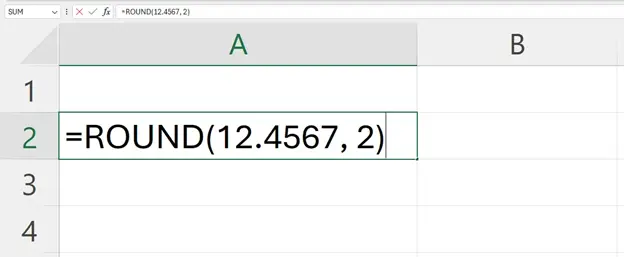
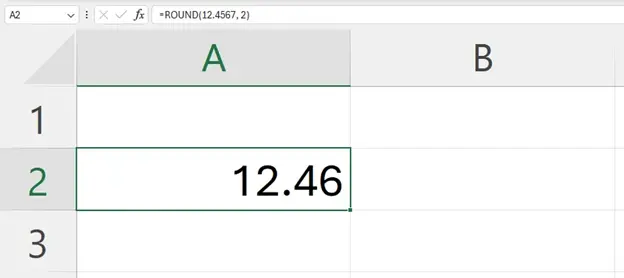
For example: =ROUND(12.4567, 2) Result: 12.46
- Zero: round to the nearest integer.
For example: =ROUND(12.6, 0) Result: 13
- Negative number: rounds to the left of the decimal (hundreds, thousands, etc.).
For example: =ROUND(1234, -2) Result: 1200
How to Use the ROUND Function in Excel (Step-by-Step)
The ROUND function in Excel is used to convert a number into a rounded value based on a specified number of digits. Unlike cell formatting, this function changes the actual value used in calculations.
Follow the steps below to apply the ROUND function correctly.
1. Select a cell
Click the cell where you want the rounded result to appear.
2. Enter the formula
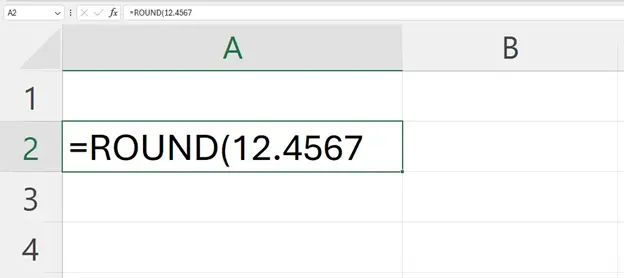
Type =ROUND(number, num_digits) to begin the ROUND function.
3. Add the number or cell reference
Enter the value you want to round or select the cell containing that value.
4. Specify the number of digits
Define how many digits Excel should round to:
- 0 for whole numbers
- Positive values for decimals
- Negative values for hundreds or thousands
5. Press Enter
Excel applies the ROUND function and returns the rounded value.
This structured approach ensures the ROUND function in Excel is applied accurately and consistently, especially in professional spreadsheets where precision matters.
Related Excel Rounding Functions
Excel provides a set of additional functions, all of which perform rounding as do the ROUND functions. Interested users can choose which function best suits their needs.
Excel offers several functions that complement the ROUND function depending on your needs:
1. ROUNDUP()
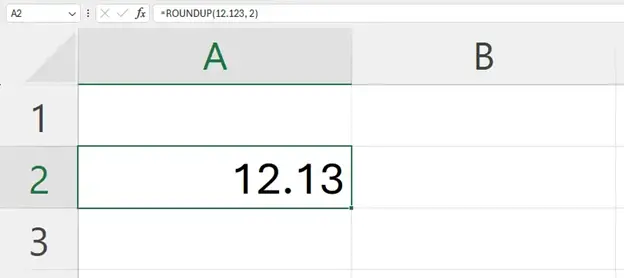
Rounds a number up to a specified number of digits.
=ROUNDUP(12.123, 2)
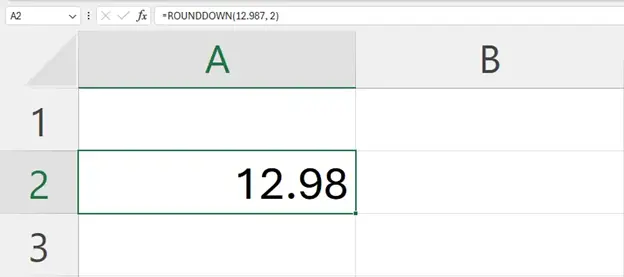
2. ROUNDDOWN()
Rounds a number down to a specified number of digits.
=ROUNDDOWN(12.987, 2)
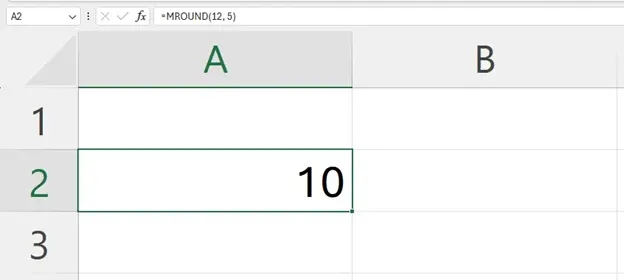
3. MROUND()
Rounds a number to the nearest multiple of a specified value.
=MROUND(12, 5)
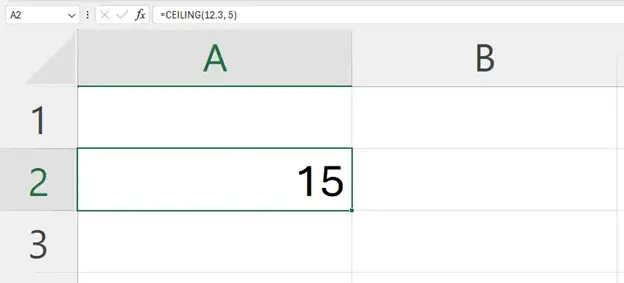
4. CEILING() and FLOOR()
CEILING(): Rounds up to nearest multiple
=CEILING(12.3, 5)
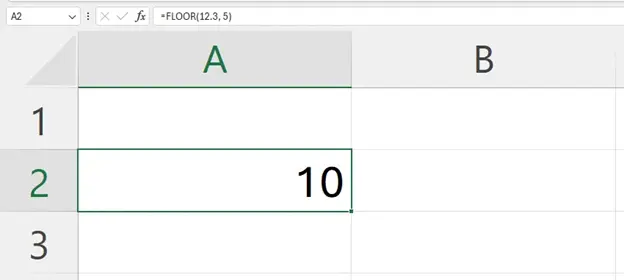
FLOOR(): Rounds down to nearest multiple
=FLOOR(12.3, 5)
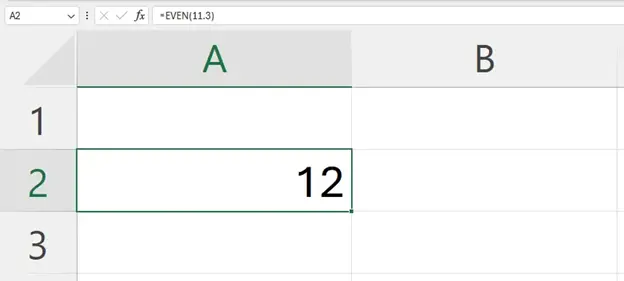
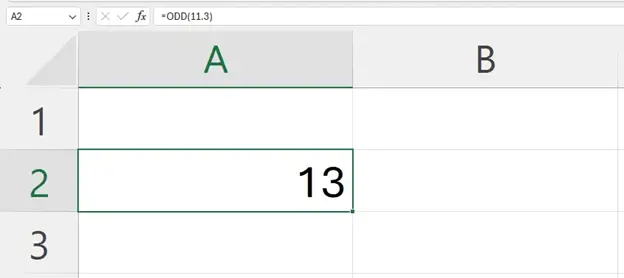
5. EVEN() and ODD()
Rounds numbers to the nearest even or odd integer.
=EVEN(11.3)
=ODD(11.3)
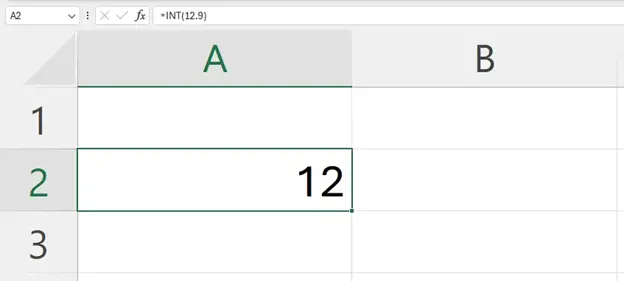
6. INT() and TRUNC()
INT(): Rounds down to nearest integer
=INT(12.9)
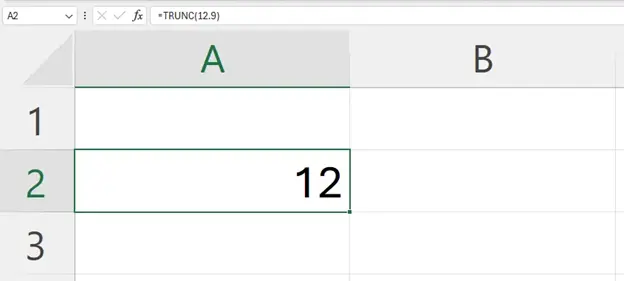
TRUNC(): Removes decimal part without rounding
=TRUNC(12.9) → 12
ROUND vs. Number Formatting: When to Use
The ROUND function would apply when you want to alter the value actually used in the calculation. It permanently changes the number, which is important for totals, budgets, and financial analysis where precision affects results.
Use number formatting when you only want to change how a value appears in a cell. Formatting controls decimal display but does not modify the underlying value, making it suitable for visual presentation without affecting calculations.
In summary:
- Use ROUND for calculation accuracy
- Use number formatting for display purposes only
Conclusion
The round function in excel is an essential tool for anyone working with numbers, budgets, or reports. With related functions like ROUNDUP, ROUNDDOWN, MROUND, and others, Excel gives you full control over how numbers appear and behave in your spreadsheets.
Start using the ROUND function today to make your data cleaner and your financial calculations more accurate. Explore more templates, tips, and Excel guides at Budget Excel to level up your spreadsheet skills.
FAQs
How to use round function in excel to nearest hundred & thousand?
Use negative num_digits:
=ROUND(1234, -2) → 1200
=ROUND(5678, -3) → 6000
How to use round function in excel to nearest whole number?
Set num_digits to 0:
=ROUND(12.6, 0) → 13
How to use round function in excel with SUM?
Combine with SUM to round totals:
=ROUND(SUM(A1:A5), 2)
How to remove round function in excel?
Simply replace the ROUND formula with the original cell reference or value.