
The IFS formula can handle multiple conditions automatically, saving time and reducing errors. Mastering these formula in Excel allows you to create dynamic, logical spreadsheets that work smarter, not harder.
In this guide, you’ll learn how to use IF Excel, Excel IF function, and advanced formulas like XLOOKUP to handle simple checks, multiple conditions, and even complex scenarios with ease. You’ll also explore how combining excel formulas with sumif excel and if and statement in excel enhances your data management.
What is IF Formula in Excel?
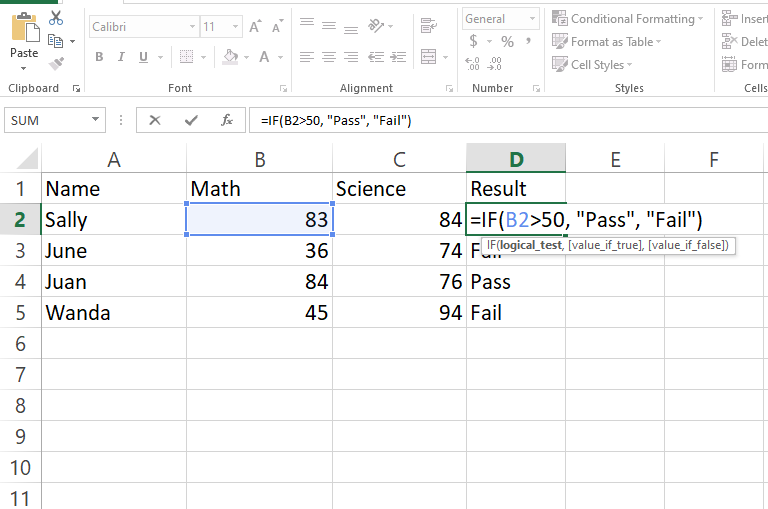
The IF Excel function is one of the most versatile tools in spreadsheets. It tests a condition and returns one value if true, another if false. Think of it as Excel’s way of saying “if this, then that.”
Syntax:
=IF (logical_test, value_if_true, value_if_false)
Example:
=IF(A1>50, “Pass”, “Fail”)
This Excel IF statement evaluates a cell and returns results accordingly. It’s foundational for building such formulas and other Excel formulas that handle more complex logic. Using the excel if function allows you to embed logical decisions in larger workflows efficiently.
Combining IF & AND in Excel
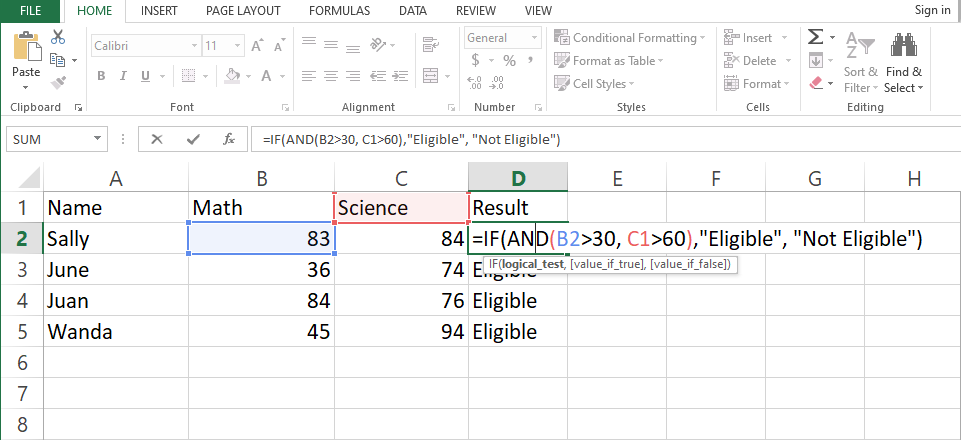
Often, one condition isn’t enough. The IF AND statement in Excel let you test multiple conditions simultaneously.
Example:
=IF(AND(A1>50, B1>60), “Eligible”, “Not Eligible”)
This IF AND statement in Excel ensures both conditions are true before returning a result. It pairs naturally with the Excel IF function and enhances excel formulas for layered logic. Calculate totals only when multiple criteria are met, especially when working with time-based or date-driven data
What is IFS Formula in Excel?
Nested IF statements can get messy when handling multiple conditions. That’s where the formula shines. It simplifies logic tests into a single, readable formula.
Syntax:
=IFS (condition1, value1, condition2, value2, …)
Example:
=IFS(A1>90,”Excellent”, A1>75,”Good”, A1>60,”Average”, A1<=60,”Needs Improvement”)
IFS formula in excel evaluates each condition step-wise from top to bottom until it finds the first condition that is True. Unlike nested excel if statements that are cumbersome, your sheets are error-proof, clean, and readable with such formula. Combining ifs formula in excel with other excel formulas like sumif excel makes dashboards much more dynamic.
IF Formula vs IFs Function
Here’s a quick comparison between IF Excel and the IFS formula:
| Feature | IF Function | IFS Formula |
| Logic | Single condition | Multiple conditions easily |
| Readability | Can become complex | Clear and structured |
| Best for | Basic checks | Layered logic |
| Example | =IF(A1>50,”Yes”,”No”) | =IFS(A1>90,”A”,A1>75,”B”,A1>60,”C”) |
Transitioning to the IFS formula eliminates deep chains of nested Excel IF functions and makes excel formulas more readable. Many advanced users combine formula of ifs in excel with if and statement in excel for multi-condition calculations.
Using the IFS Formula: Step-by-Step Guide
- Select a cell where you want the result.
- Type =IFS( to begin your formula.
- Enter conditions followed by their respective results.
- Add additional pairs as needed.
- Press Enter: Excel evaluates and returns the first true match.
Pro Tip: Start with the most specific conditions first. The IFS formula evaluates in order and stops at the first true result, ensuring accuracy in your excel if statement.
Combining IFS Formula with Other Excel Functions
You can supercharge these formula by pairing it with other excel formulas, like SUMIF Excel or AVERAGEIF.
Example:
=IFS(SUMIF(A:A,”North”,B:B)>50000,”High”,SUMIF(A:A,”North”,B:B)>30000,”Medium”,TRUE,”Low”)
This formula totals sales using sumif excel and ranks them with these formula in Excel. Combining this formula in excel with if and formula in excel makes data analysis faster and more insightful.
Common Errors and Fixes
Even seasoned users encounter errors with excel formulas. Here’s how to fix them:
- #N/A Error: Add a final TRUE condition to cover all cases.
- #VALUE! Error: Ensure your logical tests are valid.
- Too many conditions: Simplify using a single IFS formula instead of multiple nested Excel IF functions.
Using excel if statements and if and statement in excel carefully helps prevent mistakes and keeps calculations reliable.
Practical Examples Using IF and IFS Formulas
- Grades: Assign scores automatically using a single IFS formula or ifs formula in excel.
- Budget Monitoring: Highlight overspending with IF Excel combined with SUMIF Excel.
- Sales Tracking: Categorize performance with if and statement in Excel.
- Data Cleanup: Identify missing or invalid entries using Excel IF statements and other excel formulas.
These formula in Excel adds speed, accuracy, and consistency to all these tasks.
Tips to Master the IFS Formula
- Plan your logic before writing the formula.
- Use IFS formula instead of nested IFs for readability.
- Combine with SUMIF Excel or other excel formulas for advanced reports.
- Test each condition individually before finalizing the if and formula in Excel.
- Label ranges and formulas clearly to maintain clarity.
With consistent use, you’ll think logically in Excel terms and streamline your work.
Conclusion
Once you master these formula, Excel becomes more than just a calculator it turns into your data assistant. You can use the excel if function, sumif excel, or such formula in Excel, or other excel formulas to automate decisions and gain deeper insights instantly.
Whether you’re building financial models or managing daily reports, the IFS formula alongside IF and statement in excel helps you create clean, dynamic, and professional spreadsheets. Start practicing today and let Excel do the thinking for you.