

Have you ever subtracted two times in Excel but got a decimal, zero, or a line of hash marks back? It’s a normal occurrence, and though it appears straightforward, time (in terms of hours and minutes) is treated very differently by Excel behind the scenes. Once you understand that logic, how to calculate time differences in Excel becomes straightforward and reliable.
This guide explains time calculation in Excel step by step. You’ll learn the correct time formula in Excel, calculate hours between two times, handle overnight shifts, fix negative results, and convert time differences into useful units without errors.
Understanding how to calculate time differences in Excel
Time differences are used everywhere. Work hours, shift tracking, task durations, and timelines all depend on accurate time calculations in Excel. Problems usually happen when time values are treated like regular numbers.
Excel doesn’t calculate time based on hours and minutes directly. It calculates based on fractions of a day. Understanding this is the foundation of every excel time difference formula.This foundation is critical if you want to master how to calculate time differences in Excel without errors.
How Excel Stores Date and Time Values
The way that Excel stores date/time information is as serial numbers.
- One full day equals 1
- One hour equals 1/24
- One-minute equals 1/1440
- One second equals 1/86400
Example:
=TEXT(0.5,”hh:mm AM/PM”)
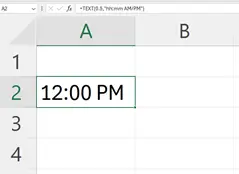
Explanation:
Time is stored in Excel as a fraction of 1 day. A value of 0.5 equals 12:00 PM because it represents half of 24 hours. This is why time difference in Excel works through subtraction rather than special time functions. Once this concept clicks, how to calculate time differences in Excel becomes much easier to predict and control.
Learn how date formula works in Excel!
How to Calculate Time Differences in Excel (Basic Formula)
The most basic way to calculate time differences in Excel is to subtract the start time from the end time.
Example:
- Start time in A2: 9:00 AM
- End time in B2: 5:30 PM
Formula in C2:
=B2-A2
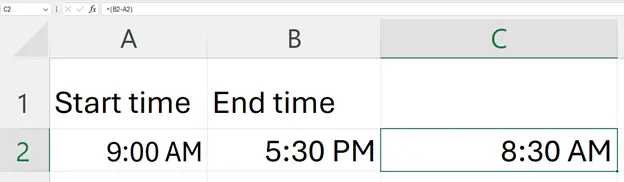
Explanation:
This time difference formula in Excel subtracts the start time from the end time. The result is a time value. Format the result cell as Time or [h]:mm to display the duration correctly.
This method works perfectly when both times fall on the same day. This is the most basic and commonly used approach when learning how to calculate time differences in Excel.
How to Calculate Hours Between Two Times in Excel
If you want the result as total hours instead of time format, multiply the difference by 24.
=(B2-A2)*24
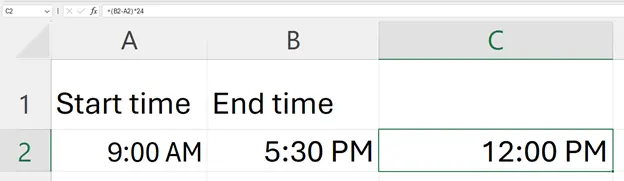
Explanation:
Excel stores time as a decimal value. Multiplying by 24 converts the time difference into total hours. This is the most reliable way to calculate hours between two times in Excel.It’s also a key variation of how to calculate time differences in Excel when you need numeric output instead of time format.
There are many industries that rely on the accuracy of this type of calculation (Payroll, Attendance Tracking & Reporting).
How to Calculate Time Differences Across Midnight
When calculating time in Excel, you will be unable to calculate any time that is later than when you started for example Night shifts
Example:
- Start time: 10:00 PM
- End time: 6:00 AM
Use this formula instead of simple subtraction:
=MOD(B2-A2,1)
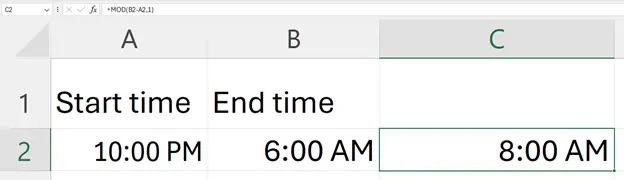
Explanation:
Whenever a time crosses midnight and you try to calculate any of those times using Excel it will calculate a negative number. The use of MOD function will reduce that number back into a 24-hour cycle. Therefore, MOD is very useful in overnight time calculations in Excel.
How to Handle Negative Time Differences in Excel
Negative time differences often appear as ##### in Excel. This happens because Excel’s default time system does not support negative time values.
Common solutions include:
- Using the MOD formula for overnight shifts
- Converting the result to hours using *24
- Ensuring correct cell formatting
In most cases, adjusting the formula is better than changing workbook settings. This keeps excel time difference calculations consistent and error-free.
Converting Time Differences into Different Units
Also, sometimes you may want to see how much time has passed between two times in hours, minutes or seconds instead of using time.These calculations are often combined with summaries like the average formula in Excel to analyze work patterns.
Hours: =(B2-A2)*24
Minutes: =(B2-A2)*1440
Seconds: =(B2-A2)*86400
Explanation:
Each formula converts the time difference into a specific unit. This method is commonly used in time calculations in Excel for productivity tracking, logs, and performance measurement.These conversions expand how to calculate time differences in Excel beyond simple start and end times.
Using Excel Time and Date Functions for Time Differences
Excel provides a number of built-in Excel functions that will support advanced simulative time calculations.
Commonly used functions include:
- HOUR()
- MINUTE()
- SECOND()
- NOW()
- TODAY()
Example:
=HOUR(B2-A2)

Explanation:
These extracts only the hour portion of the time difference. Excel time formulas like these are useful when you need separate values instead of a combined duration.
Common Errors When Calculating Time Differences in Excel
Most errors in time calculation in Excel come from formatting issues, not formulas.
Common mistakes include:
- Time values stored as text
- Mixing date-only and time-only cells
- Forgetting to format result cells
- Ignoring overnight scenarios
To see if a cell contains an actual time, you can quickly check if it is a valid time with:
=ISNUMBER(A2)
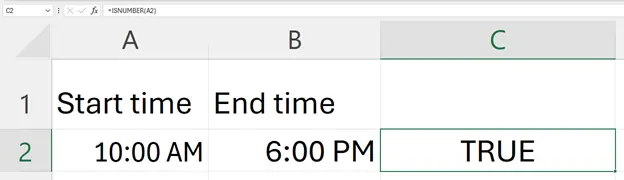
Explanation:
If it returns FALSE then the time has been stored as text. Text-formatted cells are one of the most common reasons excel time formulas fail.Spotting these mistakes early makes how to calculate time differences in Excel far less frustrating.
Tips to Calculate Time Differences Accurately in Excel
- Format cells before entering formulas
- Use [h]:mm for durations longer than 24 hours
- Keep date and time values consistent
- Test formulas with known values
- Avoid manual typing when possible and rely on Excel autofill to copy formulas correctly.
Following these best practices improves accuracy across all excel time difference calculations.
Conclusion
When you understand how to calculate time differences in Excel, you can get rid of any confusion you may have with tracking hours, shifts and periods of time. With the right formulas and formatting, how to calculate time differences in Excel becomes a repeatable skill rather than guesswork. Once you understand how time is stored in Excel and the correct formulas to use, even complex overnight shift period and negative time calculations will be easy.
If time-based information is a normal part of your work life and you regularly make spreadsheets in Excel for tracking hour, then check out Budget excel for practicing these formulas on a consistent formatting basis will ultimately save you time and reduce your likelihood of making a mistake when you do so.
FAQs
What is the formula to calculate the time difference in Excel?
The basic formula is to subtract the start time from the end time, like =B2-A2.
Excel returns the result as a time value, and you just need to format the cell as Time or [h]:mm to see the duration correctly.
How to calculate time difference in Excel over 24 hours
Use the formula =EndTime-StartTime and then format the result cell as Custom → [h]:mm.
This will stop Excel from resetting after 24 hours and show total hours correctly, like 27:30 instead of 3:30.
How to calculate the time difference in Excel between two dates
Use =EndDate-StartDate to get the difference in days between two dates in Excel.
If you want hours or minutes, multiply the result by 24 or 1440.