
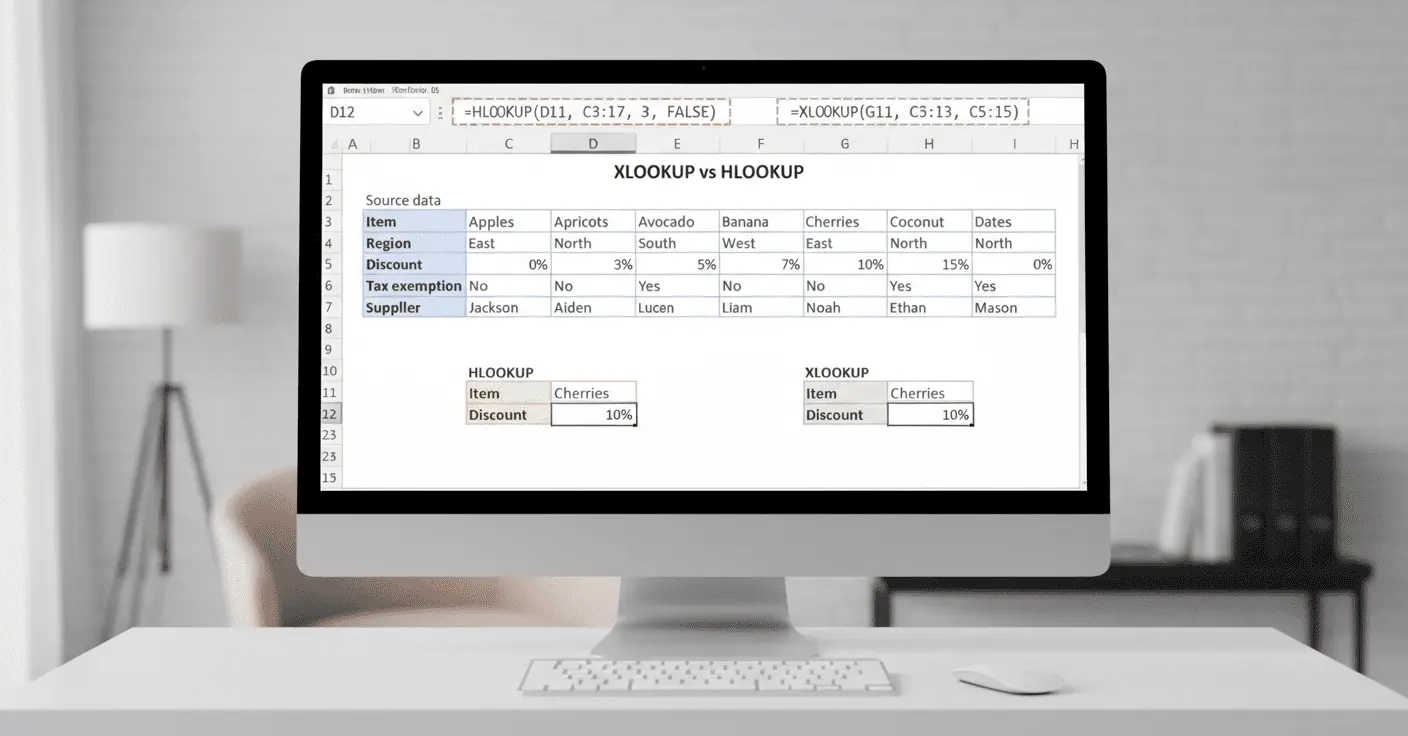
Did you know mastering XLOOKUP and HLOOKUP in Excel can save hours of work on your Microsoft Excel projects. These lookup functions make excel data analysis faster, smarter, and more accurate. Whether you’re a beginner learning excel for beginners or an advanced user improving your advanced Excel skills, understanding these Excel functions is essential.
This article will demonstrate using this powerful functionality, compare examples, and provide real world examples used in fine tuning your excel spreadsheets.
What is HLOOKUP in Excel?
To begin with HLOOKUP in Excel stands for “Horizontal Lookup.” It looks up a value in horizontal rows in an excel worksheet and provides a corresponding value in a given row. In such cases, use HLOOKUP in Excel when the data already exists in the horizontal direction such as the monthly sales or in a student’s examination marks.
Formula:
HLOOKUP (lookup_value, table_array, row_index_num, [range_lookup])
Parameters explained:
- lookup_value: The value you want to search for in the first row of your excel spreadsheet.
- table_array: The excel worksheetcontaining your data.
- row_index_num: The row number to return the value from.
- range_lookup: TRUE for approximate match, FALSE for exact match.
Example:
A company tracks employee sales horizontally:
| Employee | Jan | Feb | Mar | Apr | May |
| Alice | 500 | 600 | 700 | 650 | 720 |
| Bob | 450 | 520 | 610 | 580 | 690 |
| Carol | 600 | 620 | 650 | 700 | 710 |
To get March sales of Carol using HLOOKUP in Excel:
=HLOOKUP (“Mar”, B1:F4, 4, FALSE) → 650
Overall, this illustrates how excel data analysis becomes easily manageable with HLOOKUP in Excel. Use an excel formulas such as this to ensure your excel spreadsheet are accurate and simple to manipulate.
What is XLOOKUP in Excel?
On the other hand, XLOOKUP in Excel is a versatile lookup function. Unlike HLOOKUP in Excel, it works horizontally, vertically, and even in reverse. It’s perfect for beginners Microsoft Excel projects to advanced excel data analysis.
Formula:
XLOOKUP (lookup_value, lookup_array, return_array, [if_not_found], [match_mode], [search_mode])
Parameters explained:
- lookup_value: the value to look in your excel worksheet.
- lookup_array: the range of cells to look up.
- return_array: array of cells to return results in.
- if_not_found: Optional value if no match.
- match_mode: 0=exact match, 1=next larger, -1=next smaller, 2=wildcard.
- search_mode: 1=first-to-last, -1=last-to-first, 2/-2=binary search.
Example:
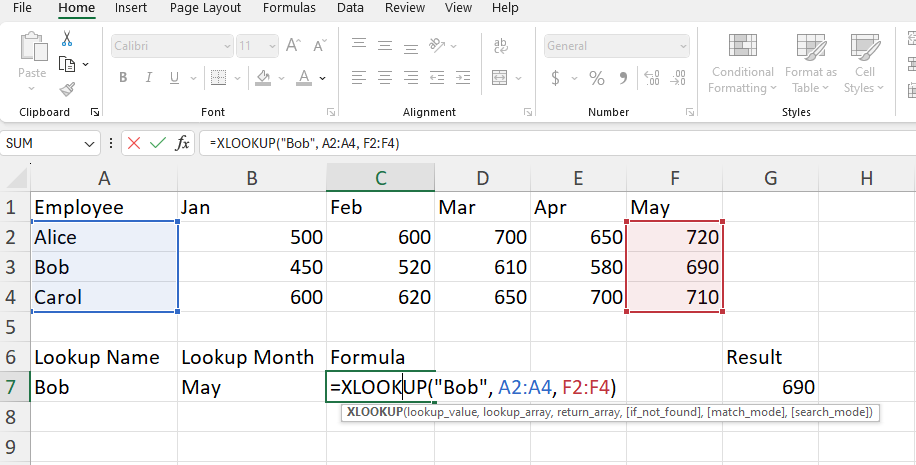
Using the same employee sales data, compute Bob’s sales in May:
=XLOOKUP (“Bob”, A2:A4, F2:F4) → 690
Using XLOOKUP in Excel, you will no longer have to count rows. It matches names and gets you results straight away and makes your excel spreadsheet efficient. This also goes very well in excel tutorials or when teaching excel for beginners.
Why is Better XLOOKUP or HLOOKUP in Excel?
However, while HLOOKUP in Excel functions on straightforward horizontal tables, it’s limited:
- Cannot conduct reverse searches.
- Requires specification of the row_index_num, which could vary.
XLOOKUP in Excel resolves these problems:
- Acts horizontally, vertically and in reverse.
- It gets updated if you add rows or columns to your excel sheet.
- Handling missing data with excel formulas like IFERROR.
Using Excel functions such as HLOOKUP in Excel and XLOOKUP in Excel, together makes excel data analysis faster and helps your excel spreadsheet look cleaner and more organized.
Beginner Friendly Example
A small business keeps track of inventory in an excel worksheet:
| Product | Jan | Feb | Mar |
| Pens | 200 | 180 | 220 |
| Notebooks | 150 | 160 | 170 |
| Markers | 90 | 100 | 120 |
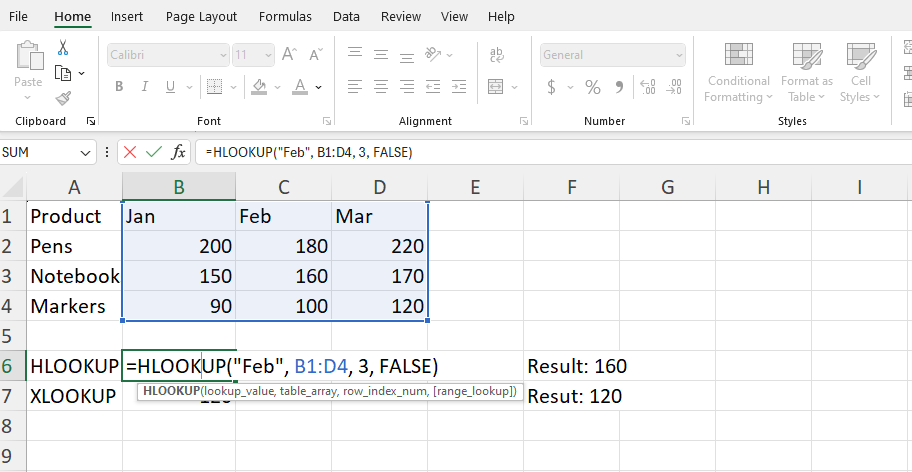
HLOOKUP in Excel example:
=HLOOKUP (“Feb”, B1:D4, 3, FALSE) → 160
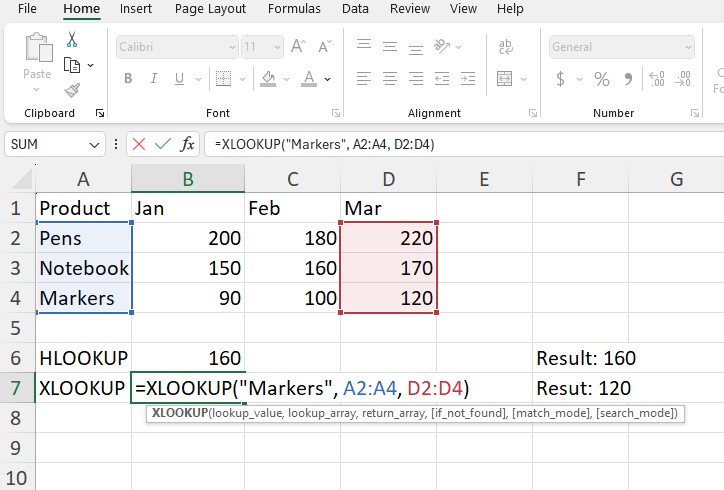
XLOOKUP in Excel example:
=XLOOKUP (“Markers”, A2:A4, D2:D4) → 120
Even beginners for excel, can understand how HLOOKUP in excel and XLOOKUP in excel simplify repetitive tasks, making learn Excel efforts faster and more rewarding.
Advanced Example: Merging HLOOKUP and Excel Functions
School tracks students’ grade in an excel worksheet:
| Subject | Alice | Bob | Carol |
| Math | 88 | 92 | 85 |
| Science | 90 | 87 | 89 |
| English | 85 | 91 | 88 |
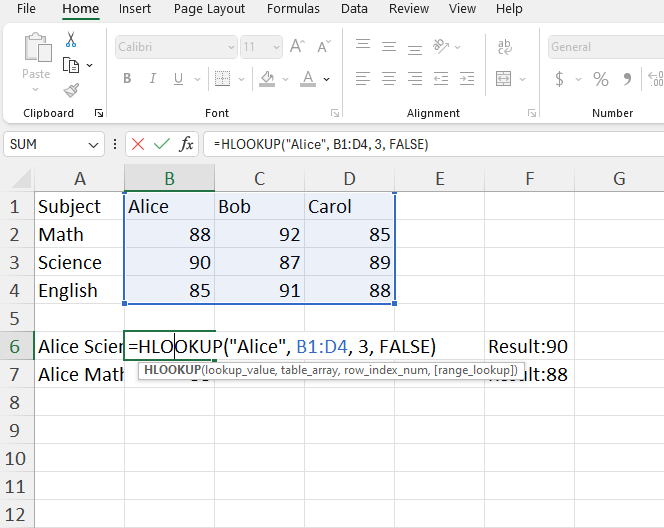
Calculate Alice’s Science marks with HLOOKUP in Excel:
=HLOOKUP (“Alice”, B1:D4, 3, FALSE) → 90
Calculate Alice’s Math marks with XLOOKUP in Excel:
=XLOOKUP (“Alice”, B1:D1, B2:D2) → 88
Therefore, utilizing these Excel functions ensures that your excel data analysis occurs swiftly and precisely. These procedures are excellent to learn Excel projects and excel tutorials.
Practical Tips for Using HLOOKUP and XLOOKUP in Excel
- Make sure to always verify your table arrangement. Apply HLOOKUP in Excel to horizontal tables and XLOOKUP in Excel to variable lookups.
- Develop innovative excel formulas like IFERROR to handle errors and prevent #N/A in your excel worksheet.
- Organize your excel spreadsheet with concise headers. Excel functions become simpler to apply with clean data.
- Investigate advanced Excel capabilities such as dynamic arrays to turbocharge excel data analysis.
- Get good excel tutorial practice with real data sets and to help excel for beginners gain confidence.
Conclusion
If you use Microsoft Excel, learning XLOOKUP and HLOOKUP in Excel isn’t optional, it’s essential to becoming truly proficient. Excel functions will speed up your excel data analysis process, reduce errors, there will be less time wasted, and your excel spreadsheet will be interactive.
So. whether you’re following an excel tutorial, building an excel worksheet, or teaching excel for beginners, integrating HLOOKUP in Excel and XLOOKUP in Excel ensures accuracy and efficiency. Practice these functions in real projects to enhance your learn Excel journey and master advanced Excel techniques.
Start experimenting today and watch how HLOOKUP in Excel and XLOOKUP in Excel transform your excel spreadsheet and excel data analysis skills.