

VLOOKUP in Excel is used to search and bring back corresponding data from various datasets. The VLOOKUP formula in Excel is known as “Vertical Lookup” as it searches down a column, making it a must-know for improving your Excel proficiency. For beginners who are building their basic Excel skills, understanding VLOOKUP in Excel is a foundational step in enhancing Excel analytics or Excel data analysis.
Use of VLOOKUP in Excel:
The VLookup Excel function searches for a value in the leftmost column of a table and brings back a corresponding value in another column in the same row.
VLOOKUP in Excel is key for both beginners and those mastering advanced Excel, since it supports more efficient Excel analytics and reporting. Applying basic Excel skills with this Excel function improves Excel proficiency and builds a strong foundation in advanced Excel workflows.
VLOOKUP in Excel Syntax: Breakdown of Arguments
The VLOOKUP in Excel formula has four arguments (or parameters). It is important to understand these parameters in order to write the formulas and understand the steps:
- Lookup value: This is the value that you wish Excel to search for. The lookup value must be in the first column of the specified range.
- Table array: This is the area of cells containing the lookup value and the value you want Excel to give you back. Selecting the correct table_array ensures your Excel data analysis is accurate.
- Column index number: This is the column number in the given range that contains the value you wish Excel to provide. The right use of the VLOOKUP formula in Excel ensures precise results.
- Range lookup: This is an optional argument. Excel always locates an approximate match (by default, which is specified by TRUE). If you want an exact match, type FALSE. Mastering basic Excel formulas includes understanding when to use TRUE versus FALSE.
When combined, these parameters form the complete vlookup formula in Excel
=VLOOKUP(lookup value,table array,column index number,range lookup)
Using this VLOOKUP formula in Excel with example helps learners visualize how VLOOKUP in Excel functions practically during Excel data analysis.
Basic VLOOKUP in a Single Sheet
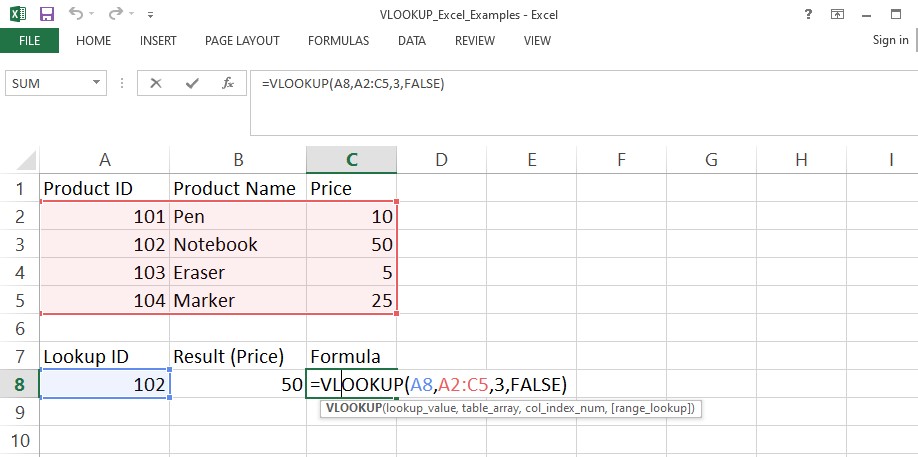
To implement a basic Excel skills task like a simple VLOOKUP in Excel within one sheet:
- Select a cell to return and enter the formula =VLOOKUP
- Press Enter or return.
- You would need to specify:
-the cell that has the value you are attempting to search for (lookup_value)
-the range where the data exists (table_array)
-the column number of the range where the return value exists (col_index_num)
-FALSE for exact or TRUE for approximate match (range_lookup).
- Enter the right parenthesis ) to close your formula.
- Press Enter or return.
Excel will instantly return the corresponding value. This VLookup formula in Excel with example illustrates how efficiently basic Excel formulas can be applied for quick lookups, an essential step toward Excel proficiency. Applying basic Excel skills with VLOOKUP Excel makes handling large datasets in Excel data analysis much easier and improves Excel proficiency.
VLOOKUP in Excel Across Worksheets
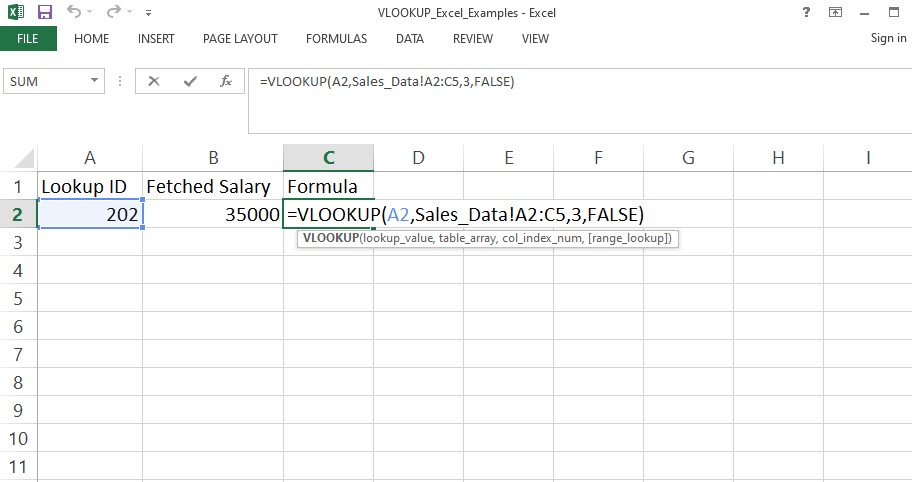
The following are the steps to use VLOOKUP in Excel across worksheets:
- Select a cell and type =VLOOKUP(.
- Select the lookup_value.
- Type a comma, then go to the other sheet.
- Select the table_array.
- Put in a comma and then the col_index_num. This is the column number in the table_array containing the data you want to extract (say, 2 for the second column).
- Insert a comma, and type in FALSE so that an exact match is found.
- Close the parentheses and press Enter.
This VLOOKUP Excel method is vital for Excel analytics where data is spread across multiple sheets. It strengthens your understanding of advanced Excel and improves overall Excel proficiency. Using basic Excel skills to apply VLOOKUP in Excel across sheets also improves your Excel data analysis capabilities. Practicing this VLOOKUP formula in Excel with example builds mastery in basic Excel formulas and prepares users for advanced Excel projects.
Using VLOOKUP in Excel Across Different Workbooks
Follow the steps below to use VLOOKUP across different workbooks in Excel:
- Type =VLOOKUP(.
- Choose the lookup_value: Click the cell containing the value for which you are to search, then press a comma.
- Specify the table_array.
- Use the whole file name within square brackets.
- Place the sheet name and an exclamation mark after the file name.
- Identify the range you need to search in the external workbook.
- Type the column index number and FALSE for an exact match, and add a closing parenthesis.
Practicing VLOOKUP in Excel enhances advanced Excel abilities and allows seamless integration of data from multiple files. Understanding this VLOOKUP formula in Excel with example reinforces basic Excel skills, basic Excel formulas, and strengthens overall Excel proficiency for professional Excel analytics.
Limitations of VLOOKUP in Excel
VLOOKUP in Excel has certain drawbacks:
- VLOOKUP cannot search left.
- Make the column you will be looking up the leftmost column within the range you specify.
- It can only return one value from a single, specified column; you will need to use an array of VLOOKUP functions to pull data from other columns.
In Excel analytics, it is typical to utilize the INDEX-MATCH or XLOOKUP for more flexibility. However, basic Excel skills with the application of VLOOKUP in Excel build a good foundation to move on to advanced Excel functions. Use of VLOOKUP Excel with other datasets in Excel hones Excel data analysis skills and strengthens fundamental Excel functions, leading to smoother Excel proficiency.
Final Thoughts
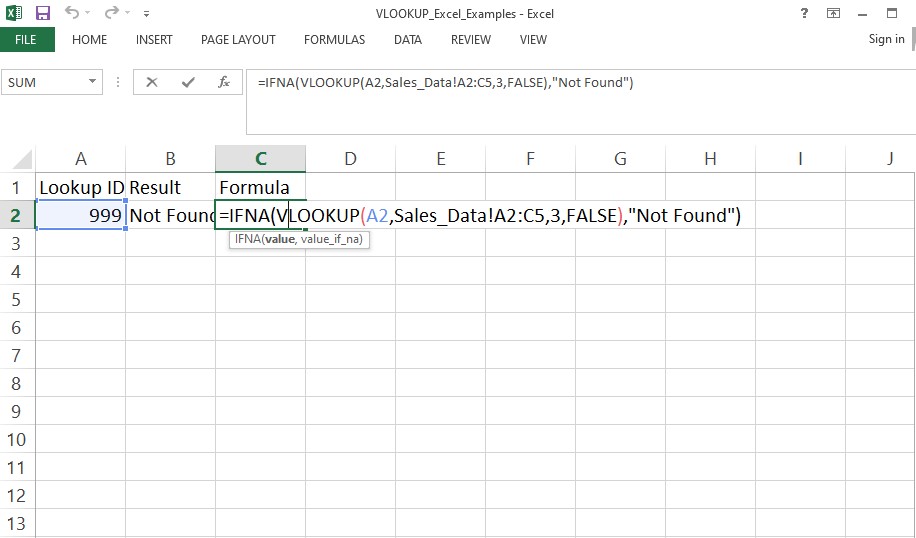
VLOOKUP in Excel is among the fundamental Excel functions to instantly look up data. It looks for a value within the first column of a table and returns a corresponding value within the other column within the same row. Best practices include the use of the absolute reference (F4) for the range of the table, ensuring the lookup value is within the first column, the use of FALSE for exact matching, and the use of IFNA to handle #N/A errors.
By practicing the VLOOKUP formula in Excel with example, one can improve at basic Excel formulas and Excel proficiency. A beginner can become efficient at Excel analysis and real-world Excel scenarios. Anyone can gain basic Excel skills through learning the VLOOKUP Excel, and both beginners and experts develop the necessary skills for higher Excel skills and practical expertise for working.