

Learning to Concatenate in Excel is an easy but powerful skill that can enormously simplify working with Excel. In practice,When dealing with Excel spreadsheets, preparing reports, or performing Excel data analysis, if you know how to concatenate, then you can combine and match text, figures, and cell contents with ease.
In this article, we present to you practical applications, step-by-step guides, and recommendations to enrich your Excel formulas, Excel functions, and even advanced Excel techniques.
What Is Concatenate in Excel?
In MS Excel, concatenation is the process of joining two or more text strings into a single cell. You’ll find this especially useful when creating Excel spreadsheets for reporting, merging names, or making automatic labels.
There are two Excel functions for concatenation:
- CONCATENATE – utilized in older versions of MS Excel.
- CONCAT – used in Excel 365, with more flexibility for today’s spreadsheets.
In short, both are essential Excel functions for anyone studying advanced Excel skills, and they are both used extensively in Excel data analysis projects.
Basic Formula for Concatenate in Excel
The simple formula in Excel is easy to use:
=CONCAT (text1, text2, …)
You can use these formulas to combine values from different cells. Excel formulas such as assist you in automating tasks in Excel spreadsheets effectively. These are particularly useful for individuals who wish to learn advanced Excel.
Mastering Concatenate in Excel: Step-by-Step
Concatenate Two Cells
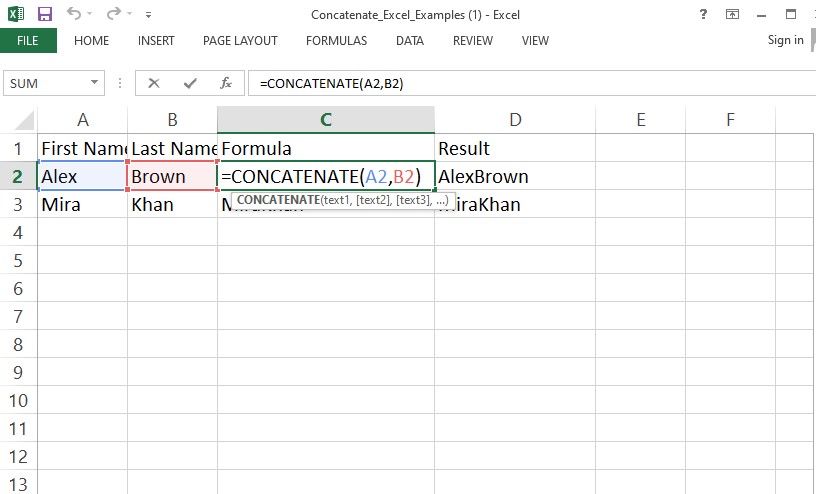
To combine the text in cell A1 and B1:
Formula:
=CONCAT (A1, B1)
This technique concatenates text with no spaces and can be utilized in Excel templates or automated Excel data analysis work.
Concatenate with Space
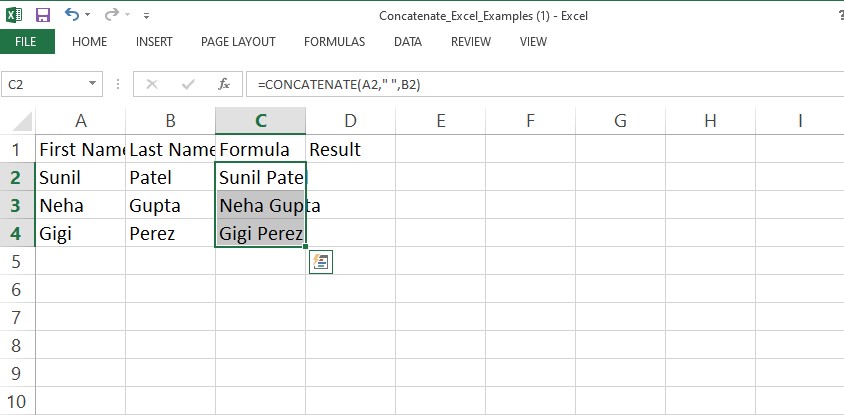
In order to add space between text values:
Formula:
=CONCAT (A1, ” “, B1)
It is often utilized to join first and last names within Excel spreadsheets. Acquiring this tip makes anyone willing to learn Excel quickly more efficient.

Concatenate with Symbols
You may add symbols such as an asterisk (*) or a dash (-):
Formula:
=CONCAT (A1, “* “, B1)
This technique is useful for creating Excel templates, product codes, or structured identifiers in Excel spreadsheets.

Concatenate Columns in Excel
To combine entire columns (for example, D and E), enter the formula in the first row and drag it down:
Formula:
=CONCAT (D2, ” “, E2)
This method is very common in advanced Excel work and works best for Excel data analysis when you need to merge multiple columns. Using Excel formulas this way helps save time and reduce errors.
Using Concatenate in Excel Older Versions <H3>
If you’re using an older version, the CONCATENATE function is used as follows:
Formula:
=CONCATENATE (A1, ” “, B1)
This is yet applicable to older Excel templates and provides backward compatibility for Excel spreadsheets. Knowing both CONCAT and CONCATENATE is imperative to anyone looking to learn Excel fully.
Combining Text and Numbers
Additionally, concatenation enables you to merge numbers with text:
Formula:
=CONCAT (“Invoice “, A1, ” – Total: $”, B1)
If A1 = 105 and B1 = 200, the result is Invoice 105 – Total: $200.
This is an effective formula for Excel data analysis reports and is a standard formula in Excel templates applied in business settings. Applying these Excel formulas guarantees uniformity and precision.
Concatenate in Excel 365
With the latest Excel updates, the CONCAT function is more efficient. You can effectively use ranges, and it is particularly useful for advanced Excel users and those who work with massive Excel spreadsheets.
Formula:
=CONCAT (A1:A5)
This concatenates several values at one time, simplifying formula complexity and easing Excel data analysis. Being proficient in Excel functions such as CONCAT is an essential milestone for professionals who want to learn Excel in detail.
Common Errors and How to Fix Them
Although learning Concatenate in Excel, most typical mistakes are:
- Missing spaces: Place ” ” to set values apart.
- Numbers being converted to text: Use the TEXT () function.
- Long formulas: Break down into steps for simplicity.
- Compatibility problems: Employ CONCATENATE in earlier MS Excel versions.
For additional guidance, refer to excel formulas in the software. The same tips can also be used when designing professional Excel templates.
Real-World Applications of Concatenation
In the real world, concatenation is employed in numerous professional applications:
- Join first name and surname in Excel sheets.
- Join city, state, and ZIP code for mailing addresses.
- Create product codes with Excel formulas.
- Automate headers and labels for Excel templates.
- Simplify Excel data analysis by combining several data fields.
These practices enhance productivity as well as efficiency, especially if handling large Excel spreadsheets or performing advanced Excel operations.
Why Learning Concatenate in Excel Matters
Concatenation is a key to mastery when you learn Excel. It is what introduces you to Excel formulas, prevents unnecessary labor, and forms a basis for advanced Excel mastery.
Knowledge of Excel functions such as CONCAT and CONCATENATE enables you to automate processes, handle large Excel spreadsheets, and Excel data analysis better. These skills are usually embedded in Excel templates and dashboards by professionals to save time and minimize errors.
Pro Tips for Concatenate in Excel
Use the ampersand (&) to concatenate quickly:
=A1 & ” ” & B1
- Do not type manually; use Excel formulas.
- Use CONCAT with TEXT or IF functions for more complex formatting.
- Save common formulas in Excel templates and use them later.
- Always keep MS Excel updated to leverage new Excel functions.
- Practice using several Excel spreadsheets to build your skills.
- Learn Excel tutorials online to master concatenation and other advanced Excel tips.
Conclusion
Mastering the way to Concatenate in Excel enhances your speed and precision in Excel spreadsheets. You can use Excel formulas easily to concatenate text, numbers, and symbols, so whether Excel data analysis, Excel templates creation, or advanced Excel techniques learning, you need to know concatenation. Continue to learn Excel, applying these Excel functions, and practicing it regularly to work confidently with professional datasets on MS Excel.