
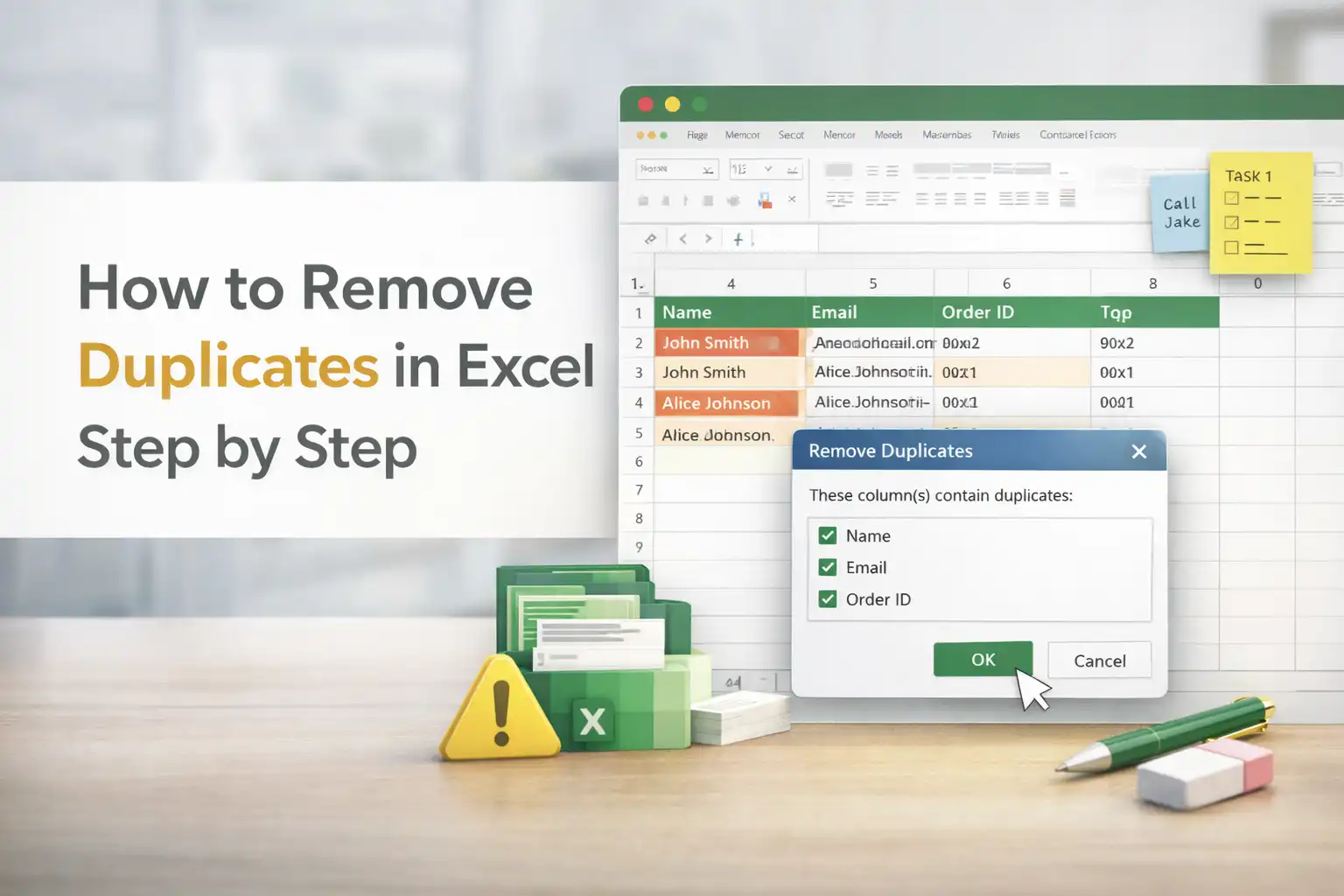
How to Remove Duplicates in Excel is one of those topics that people search when work already feels messy. There is a sheet full of names, numbers, emails, sales entries, maybe copied from five sources, and suddenly nothing matches anymore. Learning How to Remove Duplicates in Excel is not just a clean up trick, it directly affects accuracy, reporting, and even trust in your data analysis from excel. Microsoft data studies often point out that poor data quality costs businesses hours every week, and duplicates sit right at the center of that problem.
Most people start searching How to Remove Duplicates in Excel because formulas stop behaving or totals look suspicious. That is usually the first sign. Duplicate removal excel methods are built into Excel for a reason, because this problem happens everywhere, from finance teams to students managing research data. Interestingly, a 2024 Analytics Vidhya article mentioned that more than 60 percent of Excel users deal with duplicate values weekly, especially while combining datasets.
Understanding Duplicate Data in Excel
Duplicates are not always obvious. Sometimes the same value appears twice in one excel select column, sometimes the full row repeats, and sometimes only part of the data matches. This is why excel find and remove duplicates tools give multiple options. Duplicate removal excel is not about deleting blindly. It is about understanding what should stay and what should go.
For example, in data analysis from excel, customer names may repeat but order IDs should not. If you rush through How to Remove Duplicates in Excel without understanding this, you might remove useful data. This is why different methods exist, from basic tools to advanced filter options and even conditional formatting.
Using the Built In Remove Duplicates Tool
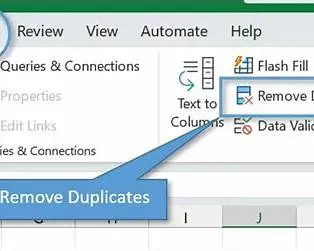
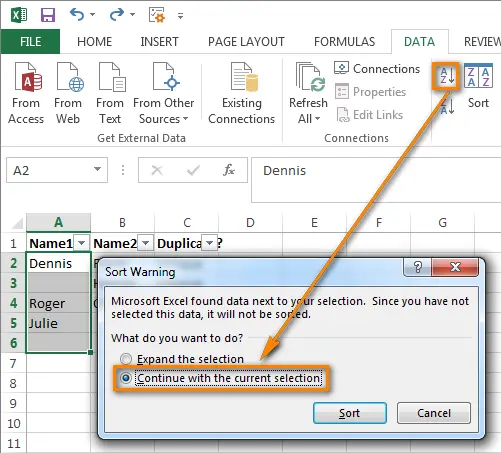
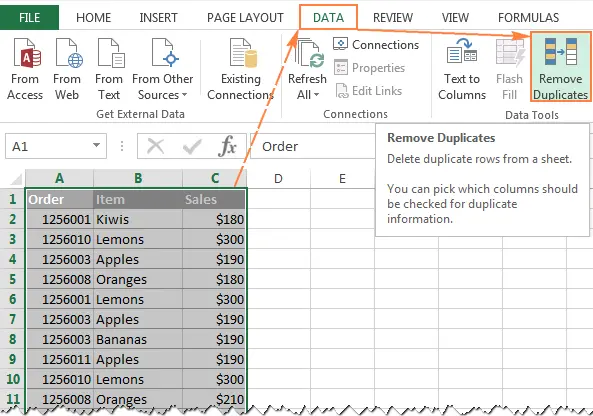
To learn How to Remove Duplicates in Excel is through the Removing Duplicates tool in the Data tab and this method works best when the data is structured cleanly. You start by using excel select column or selecting the entire select range. This part matters more than people think.
Once the select range is highlighted you can go to the Data tab and choose Remove Duplicates, Excel then asks which columns to check. This is where duplicate removal excel becomes flexible. You can check one excel select column or multiple columns depending on your needs. For example, in excel find and remove duplicates for sales reports, you might check invoice number and date together.
After clicking OK, Excel shows how many duplicates were removed. This feedback is important for data analysis from excel because it tells you how much data changed. Many beginners skip reading that message, but it helps validate your action.
This approach to How to Remove Duplicates in Excel is fast, reliable, and widely recommended by LiveFlow and Zero to Mastery guides. Still, it is not the only way.
Highlight Before You Delete Using Conditional Formatting
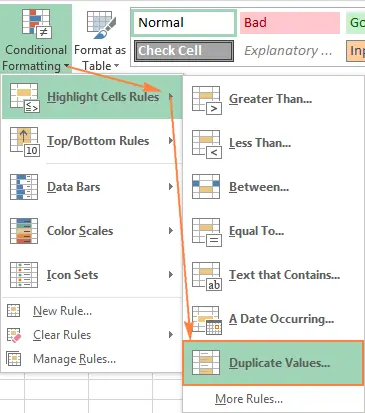
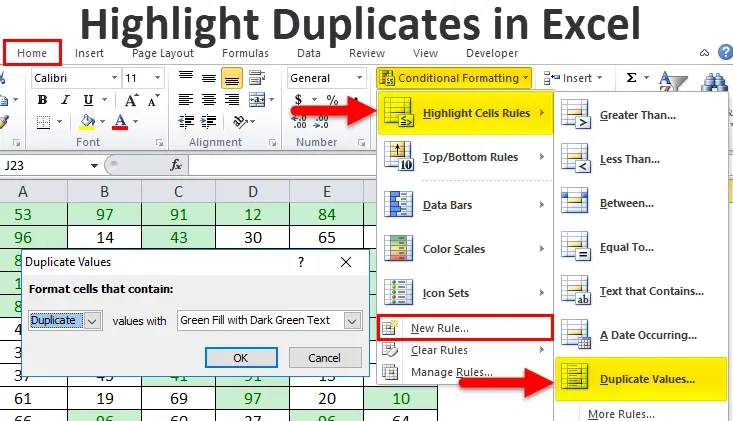
Sometimes you do not want to delete immediately. Highlight duplicate in excel methods help you visually inspect data first. This is especially useful when the data feels sensitive. Conditional formatting is perfect for this.
Select the Excel select column or select range, then go to Conditional Formatting and choose Duplicate Values. Excel instantly highlights duplicates in excel cells with color. This method does not remove anything, but it gives clarity.
According to Unstop and Analytics Vidhya, many professionals prefer this step before applying duplicate removal excel tools. It reduces mistakes and builds confidence. For data analysis from excel tasks, visual checks matter.
Once you see the highlighted entries, you can decide whether to apply How to Remove Duplicates in Excel using the built in tool or another approach. Conditional formatting also works well when comparing columns or scanning large datasets.
Using Advanced Filter for Duplicate Removal
The advanced filter is one of the lesser-used but powerful different methods available. It sounds complex, but once understood, it feels logical. Advanced filter works well when you want to copy unique records to a new location instead of deleting anything.
Start by selecting your select range. Then go to Data, choose Advanced under Sort and Filter. Select the option to copy to another location and check unique records only. This method performs duplicate removal in Excel without touching the original data.
Many data analysts prefer this for data analysis from Excel projects because it keeps raw data intact. LiveFlow documentation highlights advanced filter as a safe approach when working with financial or reporting datasets.
Learning how to Remove Duplicates in Excel using the advanced filter takes practice, but it is worth knowing. It is one of those different methods that feels professional without being complicated.
Removing Duplicates with Formulas
While formulas are not always beginner-friendly, they deserve a mention. Functions like COUNTIF can help identify duplicates. You can create a helper column that checks how many times a value appears in an excel select column.
If the count is greater than one, you know it is a duplicate. This technique supports excel find and remove duplicates logic indirectly. It pairs well with conditional formatting and manual review.
In data analysis from excel scenarios, formulas give control. You decide what qualifies as a duplicate. This approach is often used when values look similar but are not identical.
Common Mistakes to Avoid
When learning how to Remove Duplicates in Excel, people often forget to select headers properly. Removing duplicates without checking headers can delete important labels. Another common issue is selecting the wrong range. Duplicate removal excel depends heavily on correct selection.
Also, many users ignore conditional formatting and jump straight to deletion. Highlight duplicate in excel steps exist for a reason. They reduce errors. The advanced filter is also skipped too often, even though it is one of the safest methods.
Why Duplicate Removal Matters More Than Ever
With growing reliance on spreadsheets, data analysis from Excel is everywhere. A 2024 productivity study referenced by Zero to Mastery showed that analysts spend nearly 20 percent of their time cleaning data, and duplicates are the top issue.
Learning how to Remove Duplicates in Excel properly saves time, improves reporting accuracy, and builds confidence in your work. Duplicate removal in Excel is not just a task; it is a habit.
Final Thoughts
How to Remove Duplicates in Excel is not about memorizing one tool. It is about understanding data, choosing the right methods, and applying them carefully. Whether you are using Excel’s find and remove duplicates tools, conditional formatting, advanced filter, or formulas, the goal remains the same her,e which is clean and reliable data.
Once you practice how to Remove Duplicates in Excel a few times, it becomes second nature. You will start selecting the right Excel select column automatically, checking the select range carefully, and trusting your data analysis from Excel more than before. That quiet confidence is what good Excel work feels like.