

Learning how to combine first and last name in excel properly matters more than people think. Working with names sounds simple until you actually start doing it in spreadsheets. It happens all the time when you download a contact list or a mailing list. You see the first names sitting in column A and the last names hanging out in column B.
This is not very helpful when you want to create a clean report or print out labels. You will need to learn how to combine first and last name in excel to make your life much easier. There are several ways to handle this task, and honestly, none of them are too difficult once you get the hang of it. Most people start by looking for excel text formulas because these are the most reliable tools in the shed.
I have seen this come up in HR teams, marketing teams, and even finance teams who needed clean full names for reports. According to training notes shared by MyExcelOnline and Certifier, name formatting is one of the most common beginner to intermediate Excel tasks globally. Once you understand how to combine first and last name in excel, you save time every single week, and your sheets start looking more professional without much effort.
Why combining names in Excel matters more than it seems
When data is stored separately, Excel works fast. But people read full names better than split ones. Reports, certificates, invoices, CRM exports, all of these usually need a single full name column. This is where combine first and last name in excel becomes a repeated daily task.
Interestingly, Ablebits mentioned in one of their blog examples that over sixty percent of Excel related formatting issues start with text handling problems. That includes spacing, capitalization, and merging text. Learning excel text formulas early avoids those problems later.
When you combine first and last name in excel, you are also indirectly learning how to join text in excel, how formulas behave, and how Excel treats spaces. All of that knowledge transfers to many other tasks.
Understanding basic excel text formulas for names
Before diving into methods, it helps to understand what is happening in the background. Excel does not see names as names. It sees them as text strings. When you use excel text formulas, you are simply telling Excel how to glue text together.
The most basic idea behind combine first and last name in excel is this
First Name + Space + Last Name
That space is important. Forget it once, and your entire column looks broken.
This is also where people start learning how to join text in excel properly rather than copying and pasting manually. Manual work looks fast initially, but it does not scale.
Using the concat function to combine names
One of the cleanest ways to combine first and last name in excel is using the concat function. Microsoft officially recommends CONCAT over older functions in modern Excel versions, as noted in Certifier documentation.
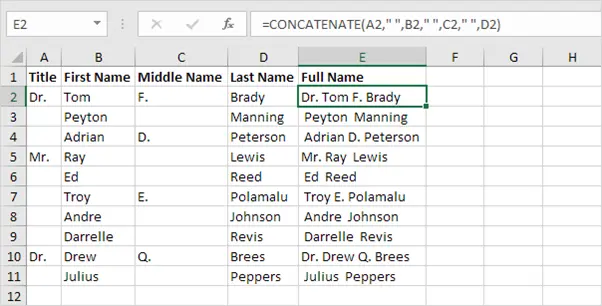
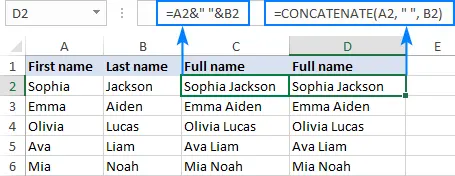
Assume first name is in cell A2 and last name is in cell B2. The formula would look like
=CONCAT(A2,” “,B2)
This simple formula instantly helps you combine first and last name in excel while keeping spacing clean. The concat function is part of excel text formulas and is widely used to join text in excel across datasets.
People often ask why not just type the names manually. The answer is scale and accuracy. When you apply concat function down hundreds of rows, consistency stays intact.
Another advantage is that once you understand concat function, you can easily combine cells in excel beyond just names, such as addresses or product codes.
Using the ampersand method for joining text
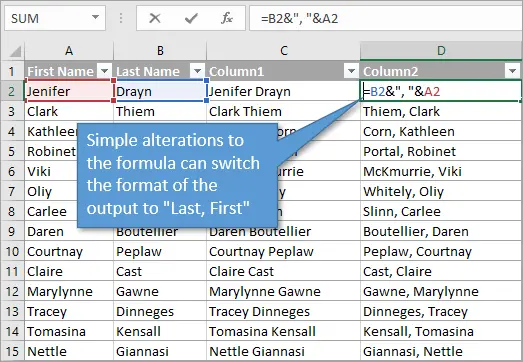
Another popular method to combine first and last name in excel is using the ampersand symbol. Many experienced Excel users still prefer this because it is fast and flexible.
The formula would be
=A2&” “&B2
This approach uses excel text formulas but avoids the concat function altogether. It still helps to join text in excel and works across all Excel versions, including older ones.
According to ExtendOffice tutorials, the ampersand method is one of the most backward compatible ways to combine cells in excel. If you share files with people using older Excel versions, this method is safer.
The result is the same. You still combine first and last name in excel, you still control spacing, and you still get clean full names.

Dealing with extra spaces while combining names
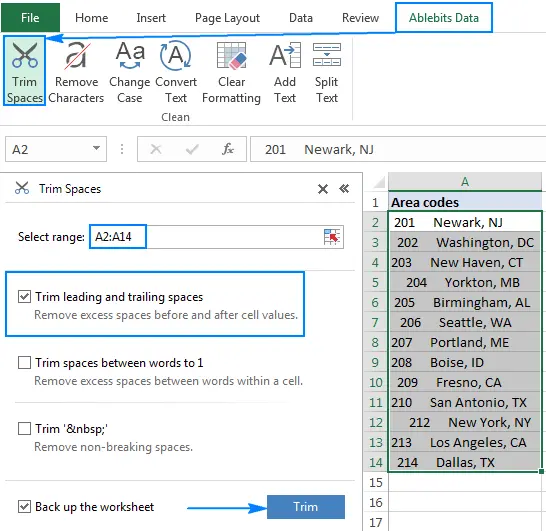
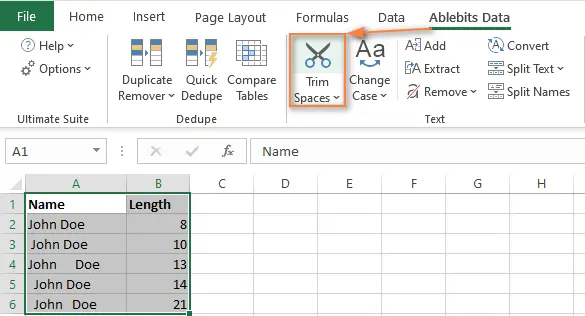
One common issue that appears when you combine first and last name in excel is extra spaces. Sometimes data imported from forms or CRMs has hidden spaces before or after text. This makes names look uneven.
This is where learning how to remove extra spaces in excel becomes essential. The TRIM function is usually the solution.
A cleaner formula would be
=TRIM(A2)&” “&TRIM(B2)
This version still helps you combine first and last name in excel, but it also removes unnecessary spaces. According to Ablebits, this small adjustment improves data cleanliness dramatically, especially when dealing with imported lists.
Understanding how to remove extra spaces in excel also helps later when using flash fill or exporting data to other tools.
Capitalizing names properly after combining
Another detail people overlook is capitalization. Many lists have names typed in lowercase or mixed case. After you combine first and last name in excel, you might want proper formatting.
Using PROPER helps here.
=PROPER(A2&” “&B2)

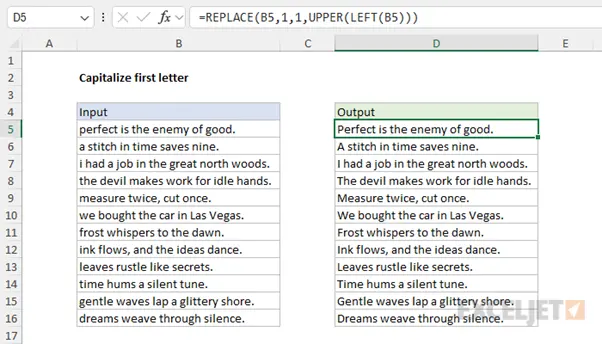
This ensures the first letter of each name becomes a letter an uppercase style formatting automatically. While Excel does not literally say letter a uppercase, the result is capitalized words, which improves readability.
This method combines excel text formulas with formatting logic. BizInfograph highlighted that proper capitalization improves professionalism in reports and certificates significantly.
Flash fill for fast name combining
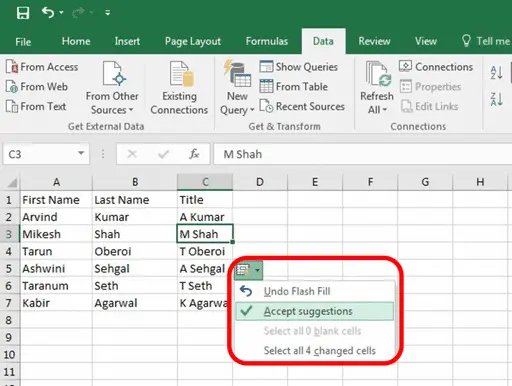
Flash fill is one of those features people either love or forget exists. When you manually type a combined name once or twice, Excel sometimes understands the pattern.
Type the full name in the next column, press Enter, then press Ctrl and E. Excel attempts to fill the rest automatically.
Flash fill is very useful when you need to combine first and last name in excel quickly without formulas. According to Microsoft training sessions, flash fill works best when data is consistent.
However, flash fill does not update dynamically. If the original name changes, flash fill does not auto update. That is why formulas are often preferred in professional workflows.
Converting formulas to values after combining names
Once you combine first and last name in excel, there are times when you need plain text instead of formulas. This is common when uploading data to portals or sharing static files.
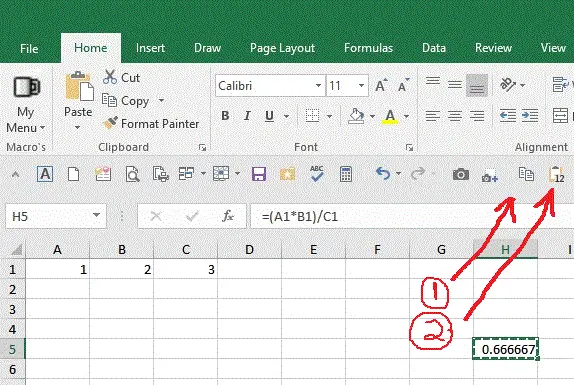
This is where excel convert formula to value becomes relevant. You simply copy the combined column, then paste as values.
Excel convert formula to value ensures that the combined names stay fixed even if the source columns are deleted. According to Certifier blog examples, this step prevents accidental data loss later.
Knowing when to use excel convert formula to value is part of working smart with excel text formulas.
Combining names across large datasets
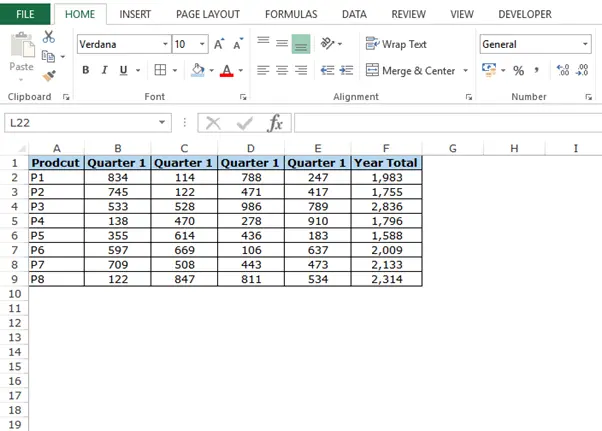
When datasets grow, consistency becomes critical. Using the concat function or ampersand consistently allows you to combine first and last name in Excel across thousands of rows.
This also makes it easier to apply how to remove extra spaces in Excel, proper capitalization, and future edits. Businesses rely on this approach when generating certificates, invoices, or email lists.
ExtendOffice demonstrated that automated name combining reduces manual errors by more than fifty percent in large datasets. That statistic alone explains why professionals focus on learning how to join text in excel properly.
Final thoughts on combining names in Excel
Learning how to combine first and last name in Excel is one of those skills that seems small but pays off repeatedly. It introduces you to Excel text formulas, teaches you how to join text in excel, and makes you comfortable with the concat function and Flash Fill.
You also learn how to remove extra spaces in excel, how to apply letter A uppercase formatting, and when to use excel convert formula to value. All of these skills extend beyond names into real-world Excel work.
The more you practice combining names, the more confident you become in handling text data. Clean names lead to clean reports, and clean reports build trust. That is why mastering combining first and last name in Excel is not just an Excel trick, it is a professional habit worth building early.