
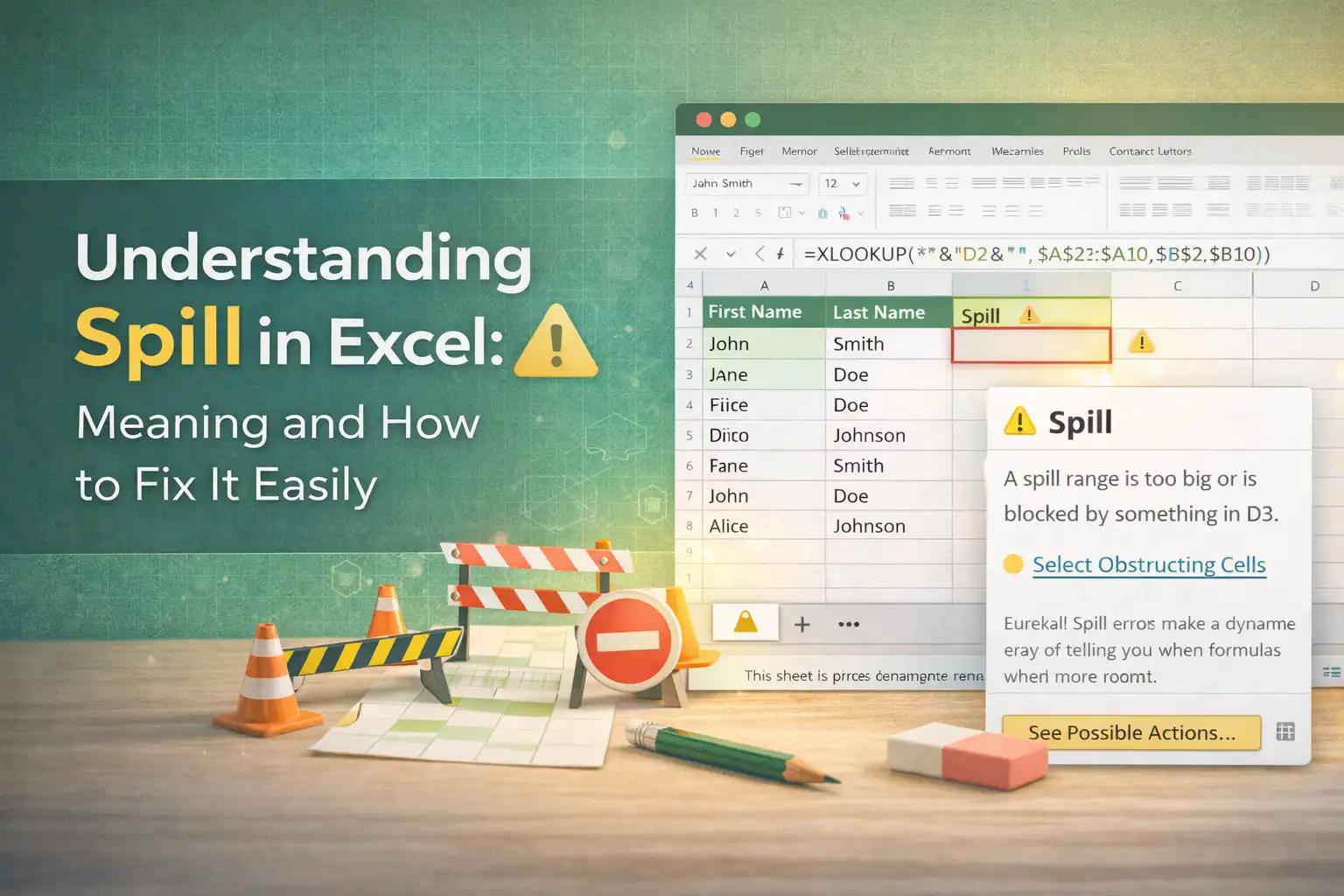
If you are working with data today, you have probably run into that annoying message that says spill. It is a common thing now because of how Microsoft changed things. When we talk about spill in excel, we are talking about what happens when a formula that is supposed to return multiple values does not have enough space to show them all. This happens because of the excel dynamic array feature that was added a few years ago.
Before this, formulas usually stayed in one cell, but now an excel dynamic array can take up a whole range of cells. If something is blocking that range of cells, you get the error. Understanding spill in excel is basically about understanding that your data needs room to breathe. If you have a list of names and you use a formula to filter them, that excel dynamic array will try to fill the range of cells below it. If there is a random piece of text or even a hidden space in the way, you see the spill in excel message. It is not a disaster, it is just excel telling you that there are obstructions in the path.
Why Does Spill in Excel Happen So Often
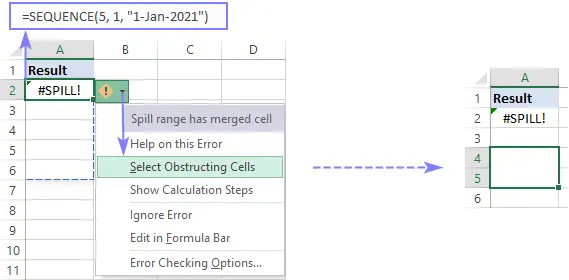
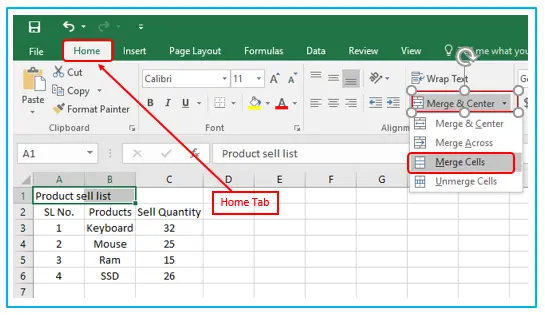
The main reason for seeing spill in excel is that the modern version of the software uses excel dynamic array calculations by default. When you write a formula like xlookup excel, it might try to bring back multiple values at once. If those multiple values find a barrier, the spill in excel error pops up immediately. One of the biggest enemies of the excel dynamic array is merged cells. We all know that merged cells look nice for titles, but they cause a lot of trouble for formulas. If your range of cells contains even one set of merged cells, the excel dynamic array cannot flow through it. You will have to use excel unmerge cells to clear the path. Another thing that causes spill in excel is when you select a whole column instead of a specific range of cells. If the formula tries to output a million rows, it will hit the bottom of the spreadsheet and trigger a spill in excel error. You have to be careful about where your range of cells ends. Often, the obstructions are just invisible. You might think a cell is empty, but it has a space character in it. This stops the multiple values from appearing.
How to Handle Obstructions and Merged Cells
When you see the spill in excel warning, the first thing you should do is click the error icon. It usually highlights the range of cells that the excel dynamic array is trying to use. If you see that the border is hitting some old data, you need to move that data. Obstructions are the most frequent cause of spill in excel. Sometimes these obstructions are merged cells that you forgot were there. To fix this, you must highlight the area and use the excel unmerge cells button. Once you excel unmerge cells, the excel dynamic array can finally fill the multiple values into the range of cells without hitting a wall. People often get frustrated with spill in excel because they do not realize that the excel dynamic array needs a totally clean range of cells. If you are using xlookup excel to find a list of prices, and there is a total row at the bottom, that total row is one of those obstructions. You must move the total row or change the range of cells. This is just how the excel dynamic array works. It is very picky about having a clear range of cells for its multiple values.
Dealing with XLOOKUP Excel and Syntax Errors
The xlookup excel function is amazing, but it is a common trigger for a spill in excel error. When you use xlookup excel, you might accidentally tell it to return an entire table instead of a single column. This creates an excel dynamic array that needs a large range of cells. If your sheet is crowded, you get the spill in excel message. Also, syntax errors can sometimes look like spill issues. If you have syntax errors in how you defined your range of cells, the excel dynamic array might try to go in the wrong direction. You should always double check your xlookup excel formula to see if you really intended to return multiple values. If you did, then you must clear the obstructions. A spill in excel is basically a sign that your layout is too tight. You can also see this when you have formulas that are too close together. One excel dynamic array might try to overlap with another excel dynamic array. This creates a conflict in the range of cells and causes a spill in excel. You have to give each formula its own range of cells to display its multiple values.
Using Excel Unmerge Cells to Clear the Path
I cannot stress enough how much merged cells ruin the excel dynamic array experience. If you are trying to fix a spill in excel, look for merged cells first. When you use excel unmerge cells, you often find that the spill in excel error disappears instantly. The excel dynamic array requires every single cell in the range of cells to be individual. Merged cells act like a giant wall for multiple values. Even if only one cell is merged, it stops the whole xlookup excel process. After you excel unmerge cells, you might need to delete the content that was hidden. This is a very simple way to solve spill in excel. Many users spend hours looking for syntax errors when the problem is just merged cells. Always remember that excel unmerge cells is your best friend when dealing with an excel dynamic array. Once the range of cells is free from merged cells and other obstructions, the multiple values will flow down perfectly.
Common Fixes for Multiple Values and Range of Cells
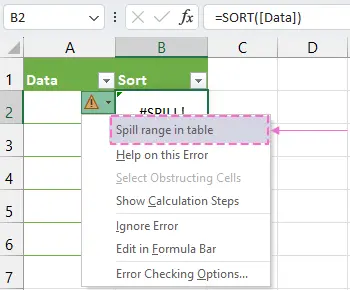
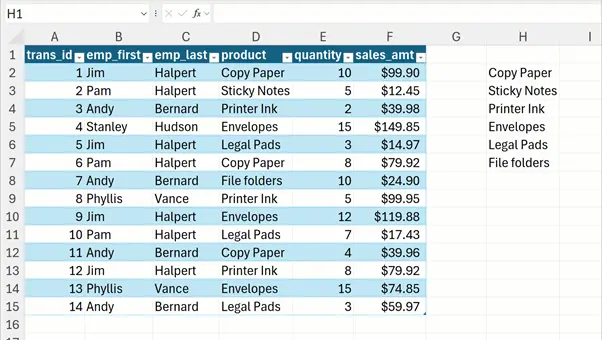
To fix spill in excel, you should always check if your formula is meant to return multiple values. If you only wanted one result but got an excel dynamic array, you might have a logic error. If you do want multiple values, then check your range of cells for any obstructions. Clear out the data that is blocking the way. If you have merged cells, use the excel unmerge cells command. Check your xlookup excel parameters to ensure the range of cells is correct. Sometimes, syntax errors in the formula itself cause it to ask for too much space. If you fix the syntax errors, the spill in excel might go away because the excel dynamic array becomes smaller. It is also helpful to remember that an excel dynamic array cannot work inside a traditional excel table. If you try to put a formula that returns multiple values inside a table, you will get a spill in excel error every time. You have to move the formula outside the table so it has a free range of cells. This is a common mistake when using xlookup excel.
Understanding Spill as Part of the New Excel Behavior
In the end, spill in excel is just a part of the new way we use the software. The excel dynamic array makes things faster, even if it brings the spill in excel message occasionally. Just keep your range of cells clean and watch out for obstructions. If you see the error, check for merged cells and use excel unmerge cells immediately. Look at your xlookup excel formulas for any syntax errors that might be causing a mess. Once you understand that multiple values need their own range of cells, you will not be afraid of spill in excel anymore. It is a helpful tool that tells you when your data is overlapping. Whether it is a syntax errors issue or just some pesky merged cells, fixing the spill in excel is usually just a matter of clearing some space.
Keeping Dynamic Arrays and Ranges Clean Long Term
Keep your excel dynamic array happy by giving it a clear range of cells, and you will see those multiple values appear without any trouble. Do not let syntax errors or obstructions slow you down. Just excel unmerge cells and let the xlookup excel do its work. Understanding the spill in excel meaning really is that simple once you get the hang of how the excel dynamic array behaves in a range of cells. Whenever you have multiple values, just ensure the range of cells is ready for the excel dynamic array and you will avoid the spill in excel error. Clear the obstructions, fix the syntax errors, and use excel unmerge cells to keep your work flowing smoothly.
A Simple Habit to Avoid Spill Errors Repeatedly
This is the best way to handle any spill in excel situation you find. If you keep these steps in mind, the excel dynamic array will be a great help for your multiple values. Always check the range of cells for obstructions before you write a big xlookup excel formula to avoid the spill in excel. It makes life easier when you do not have to deal with syntax errors or merged cells constantly. Use excel unmerge cells and enjoy your multiple values. One last check for obstructions in the range of cells will usually fix your spill in excel for good.
Mastering Spill in Excel Over Time
If you find syntax errors, fix them, and the excel dynamic array will provide the multiple values you need in the correct range of cells. This is how you master the spill in excel meaning and fix it easily. Each time you use xlookup excel, remember the range of cells must be empty of obstructions. If you see a spill in excel, just excel unmerge cells and check for syntax errors. Your excel dynamic array will then show the multiple values perfectly in the range of cells. It is a simple process for any spill in excel error. Clear the obstructions, avoid syntax errors, and the multiple values from your excel dynamic array will fit the range of cells.
Final Reminder Before You Write Any Formula
Always remember to excel unmerge cells if you see that spill in excel. This ensures your xlookup excel works and your multiple values fill the range of cells. Managing the excel dynamic array and avoiding spill in excel is all about the range of cells. Check for obstructions and syntax errors regularly. If you find merged cells, excel unmerge cells to let the multiple values through. That is the secret to fixing spill in excel.