

Learning how to freeze panes in excel is one of the most useful things you can do for your sanity. When you are working with massive datasets that seem to go on forever, it is very easy to lose your place. You scroll down to look at some numbers and suddenly you do not know which column is which because the excel headers have disappeared from your sight. If you are tired of scrolling up and down just to check a label, then this guide on how to freeze panes in excel will help you fix that. It is a simple trick that keeps your data organized and makes sure you always know what you are looking at in your workbook sheets.
Why you need to know how to freeze panes in excel
Imagine you have a giant table with hundreds of entries. You move your mouse down and the top part goes away. Now you see a number like 500 but you do not know if it is the price, the quantity, or the ID number. That is a mess. When you understand how to freeze panes in excel, you lock those labels in place. Whether you need to see the column and row in excel or just the very top part, this tool is found under the view tab in excel. It is not just for experts because even a beginner needs to know how to freeze panes in excel to manage data properly. People often forget that this is a basic skill that saves hours of frustration.
The first step for how to freeze panes in excel
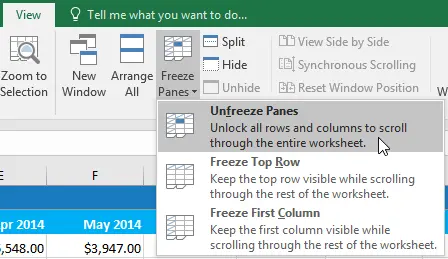
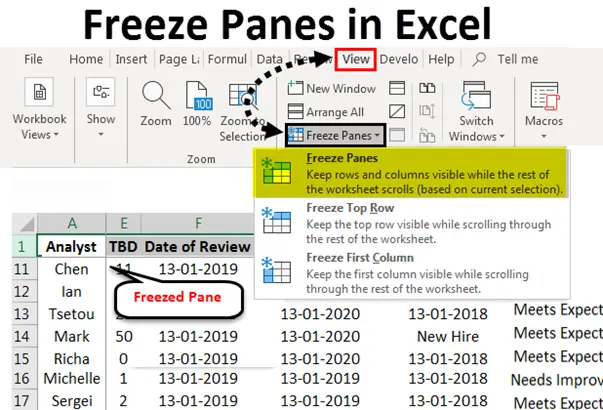
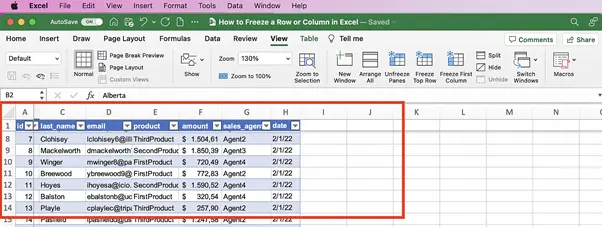
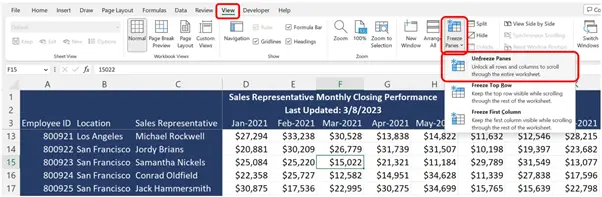
To get started, you need to open your file and look at the top menu. Most people get confused because there are so many buttons. You must find the view tab in excel because that is where all the magic happens for your screen layout. Once you are there, you will see a button that says freeze panes. If you want to know how to freeze panes in excel for the very first row, it is quite easy. You just click that button and choose the top row option. This makes the excel headers stay right at the top even if you scroll down to row one thousand. Knowing how to freeze panes in excel is the best way to keep your eyes on the important labels.
How to freeze a row in excel specifically
Sometimes you do not want to freeze everything. You might only care about that first row. If you are wondering how to freeze a row in excel, the process is almost the same as the general how to freeze panes in excel method. You go to the view tab in excel and select freeze top row. This is perfect for when your excel headers are only in the first line. It is a very common task for people who use workbook sheets for simple lists. Learning how to freeze a row in excel ensures that you do not get lost. Many people search for how to freeze panes in excel because they do not realize there is a specific button for just the top row.
Dealing with the column and row in excel together
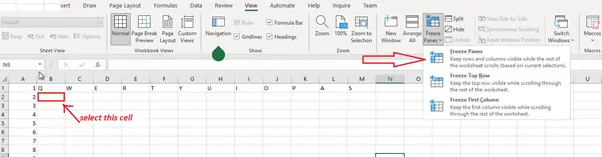
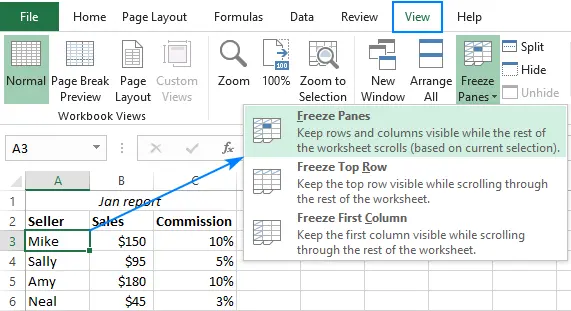
There are times when you need more than just the top row. Maybe you have names in the first column and dates in the first row. You need to know how to freeze panes in excel so that both stay visible. This is where the excel column freeze comes into play. To do this, you have to click on a specific cell. If you want to freeze the first row and the first column, you click on cell B2. Then you go to the view tab in excel and hit the main freeze panes button. This is the secret for how to freeze panes in excel when you have a complex column and row in excel setup. It is a bit tricky at first but once you do it, you will always remember how to freeze panes in excel this way.
Using the view tab in excel for better navigation
The view tab in excel is your best friend for making your workbook sheets look readable. Besides how to freeze panes in excel, you can also zoom in or out. But honestly, how to freeze panes in excel is the most important feature there. If you have an excel column freeze active, you can slide your data to the right and the names on the left will stay there. This is how you handle a large column and row in excel layout without losing your mind. Many people struggle with how to freeze panes in excel because they click the wrong cell. Remember that how to freeze panes in excel always locks everything above and to the left of where your cursor is sitting.
How to freeze panes in excel for multiple rows
What if your excel headers take up three rows instead of one? You can still use the how to freeze panes in excel technique. You just need to select the fourth row. Then you go to the view tab in excel and click the freeze panes option. Now those three rows are stuck at the top. This version of how to freeze panes in excel is great for professional reports. It makes your workbook sheets look much more organized. When you master how to freeze panes in excel, you can customize your view however you like. Most users only know the basic how to freeze a row in excel but you should know how to do multiple ones too.
The importance of excel headers in data entry
Without excel headers, a spreadsheet is just a bunch of random numbers. That is why how to freeze panes in excel is so critical for data entry. If you cannot see the labels, you will make mistakes. When you use how to freeze panes in excel, you prevent those errors. It is also helpful when you need to filter excel data. If you filter excel rows while the headers are frozen, it is much easier to see what the results actually mean. You should always think about how to freeze panes in excel before you start typing in a lot of information. It makes the workbook sheets much more user friendly for anyone else who has to open them later.
Master the excel column freeze
We talked about rows, but the excel column freeze is just as vital. If you have a wide sheet, you need an excel column freeze to keep your identifiers visible. To do an excel column freeze, go to the view tab in excel and pick freeze first column. This is a specific part of how to freeze panes in excel that people use for contact lists. If you know how to freeze a row in excel and how to do an excel column freeze, you are already better than most users. The how to freeze panes in excel function is truly a life saver for big projects.
Common mistakes when learning how to freeze panes in excel
One mistake people make is trying to use how to freeze panes in excel while they are editing a cell. You have to press enter first. Another thing is that you cannot use how to freeze panes in excel if you are in page layout view. You must be in the normal view in the view tab in excel. If the button is greyed out, that is usually why. Understanding how to freeze panes in excel means knowing these little rules. Sometimes people think they know how to freeze a row in excel but they click the wrong place and freeze the wrong part of the column and row in excel. Just undo it and try the how to freeze panes in excel steps again.
How to freeze panes in excel for better filtering
When you decide to filter excel tables, having your panes locked is a huge advantage. You can scroll through your filtered results and the excel headers stay put. This is why how to freeze panes in excel is often taught alongside how to filter excel. They go hand in hand for data analysis. If you are looking at workbook sheets with thousands of rows, how to freeze panes in excel will make the filtering process much smoother. You will not have to keep scrolling back up to remember what the filter excel criteria was supposed to be. It is all about making the column and row in excel work for you.
Unfreezing is just as easy as how to freeze panes in excel
If you change your mind, you can always stop. You just go back to the view tab in excel and click unfreeze panes. This is part of the how to freeze panes in excel process that people often forget. It clears all your locks, whether it was an excel column freeze or a how to freeze a row in excel setting. You might need to do this to reset your view. Then you can apply how to freeze panes in excel in a new way if your data structure changes. Workbook sheets are flexible, so your use of how to freeze panes in excel should be flexible too.
Final thoughts on how to freeze panes in excel
In conclusion, knowing how to freeze panes in excel is a must have skill. It keeps your excel headers in sight and helps you manage every column and row in excel with ease. Whether you need how to freeze a row in excel for a simple list or an excel column freeze for a wide table, the view tab in excel has everything you need. Do not forget to use it when you filter excel data in your workbook sheets. Once you practice how to freeze panes in excel a few times, it will become second nature.You will never have to worry about losing your place again because how to freeze panes in excel keeps your data right where you can see it.