
Hello there, fellow spreadsheet adventurer! Have you ever had one of those days where your valuable data is split across multiple cells? Maybe you have first names in column A and last names in column B, but your boss, or perhaps a mailing list, desperately needs them combined into one cell. It is a common problem, and it feels like a big wall when you are starting out with data management. Well, let us knock that wall right down. We are going to dive into the wonderful world of Excel and Concatenate, making data combination simple, maybe even fun! With tools like concat excel and the concat excel formula, this becomes even smoother.
Learning Excel and Concatenate is truly a foundational skill. It is not some obscure trick; it is daily magic for anyone working with spreadsheets. When you learn how to Excel concatenate text, you save massive amounts of manual effort. Forget copying, pasting, and typing things over and over again. We are going to talk about the classic methods, the newer, slicker methods, and even the heavy-duty solution for those really tricky combination jobs. Get ready to master Excel and Concatenate with powerful helpers like the concat excel formula.
What in the World is Excel and Concatenate Anyway?
At its simplest, Excel and Concatenate kind of means joining two or maybe more bits of text or numbers or even cell references so they become one long string of text. The word concatenate really just means to link things together. Picture train cars, you gently attach text1 to text2 to text3 and continue on here. In the context of our favorite spreadsheet program, the goal is always to create a single piece of clean, usable data from fragmented parts. This process of combining data is handled by a special group of functions called the text function family. If you are struggling with split addresses or product codes, the right text function will be your best friend, especially when combined with tools like the concat excel formula.
Now, we have a few ways to achieve this mighty feat of Excel and Concatenate. We have the original function, the super-simple operator, and the modern, range-friendly functions. We are going to explore all three because knowing all of them really solidifies your skills in concat excel and helps you understand where the concat excel formula fits into your workflow.
The Classic Way: Understanding the CONCATENATE Formula
For years and years, the primary way to perform Excel and Concatenate was by using the CONCATENATE function itself. This is an essential concat excel function to know, even if it is technically being retired. The syntax for this concatenate formula is straightforward:
=CONCATENATE(text1, text2, [text3], …)
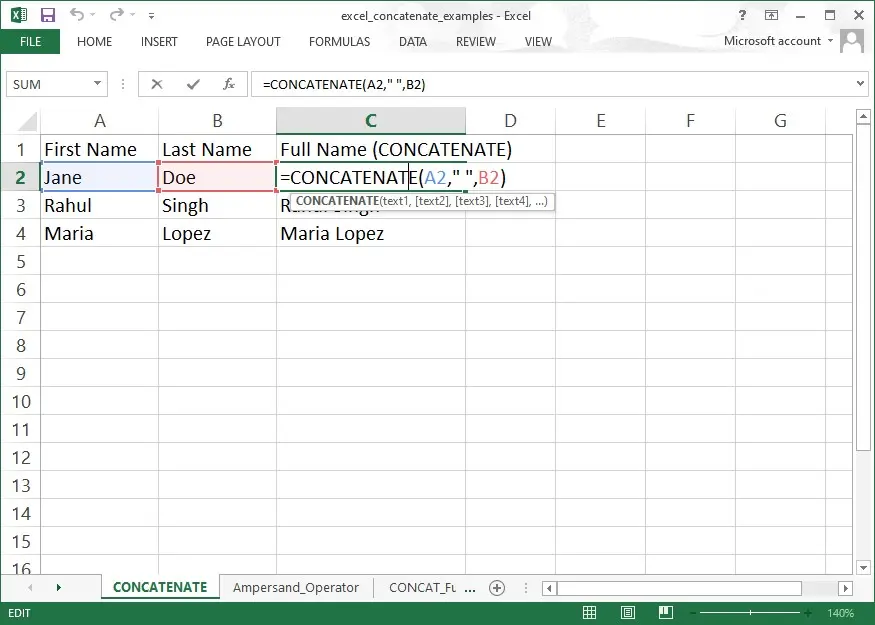
Let us say cell A2 has “Jane” and cell B2 has “Doe.” If you type =CONCATENATE(A2, B2), you will get “JaneDoe.” Notice something wrong there? The names are all jammed up! That is one of the most common issues people face when first using the concatenate formula. To fix this, you must explicitly tell the concat excel function to include a space. The correct concatenate formula would be:
=CONCATENATE(A2, ” “, B2)
See how we placed the space— ” ” —in double quotation marks? That basically tells the concat excel function to treat the space as its own little piece of text that gets added between the names. Learning how to drop in these small separators like spaces, commas or even hyphens is a big part of really using Excel concatenate text in a smart way. A lot of people use this basic trick to concat excel almost every single day. You can use this concat excel function to join up to 255 different items, which is more than enough for nearly any kind of data work. Being able to neatly space out your excel concatenate text results is kind of what makes someone look more like a pro than a beginner.
The Ampersand (&): The Simple Concatenation Operator
If you find typing the long word CONCATENATE a bit tiring, you are definitely not the only one. This is why so many people like using the ampersand (&) calculation operator instead. It is not really a formal text function, but it is a basic operator and honestly the easiest concat excel formula to use. It gives you the same result as the CONCATENATE function, just with way less typing, which feels nicer when you are working fast.
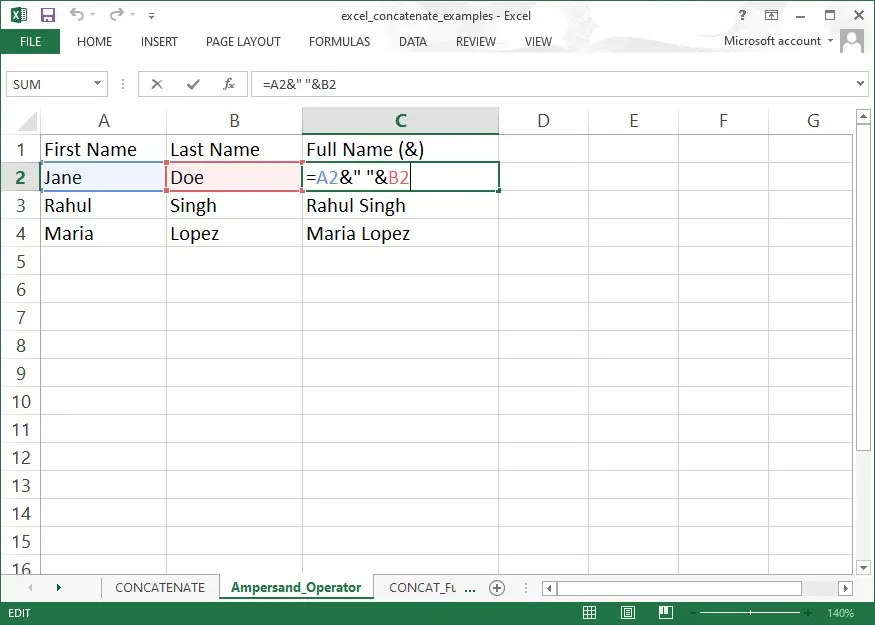
For our Jane Doe example, using this method of Excel and Concatenate looks like this:
=A2 & ” ” & B2
This is a powerful concat excel formula that is much faster to write. You are telling Excel to take the value in A2, and (the ampersand) a space, and (another ampersand) the value in B2. If you want to perform excel concatenate text quickly, this is often the go-to method for many long-time users of concat excel. It is simple, effective, and handles the necessary spacing easily. The simplicity of the & operator is why it remains a popular choice for routine Excel and Concatenate tasks.
The Modern Functions: CONCAT and Textjoin
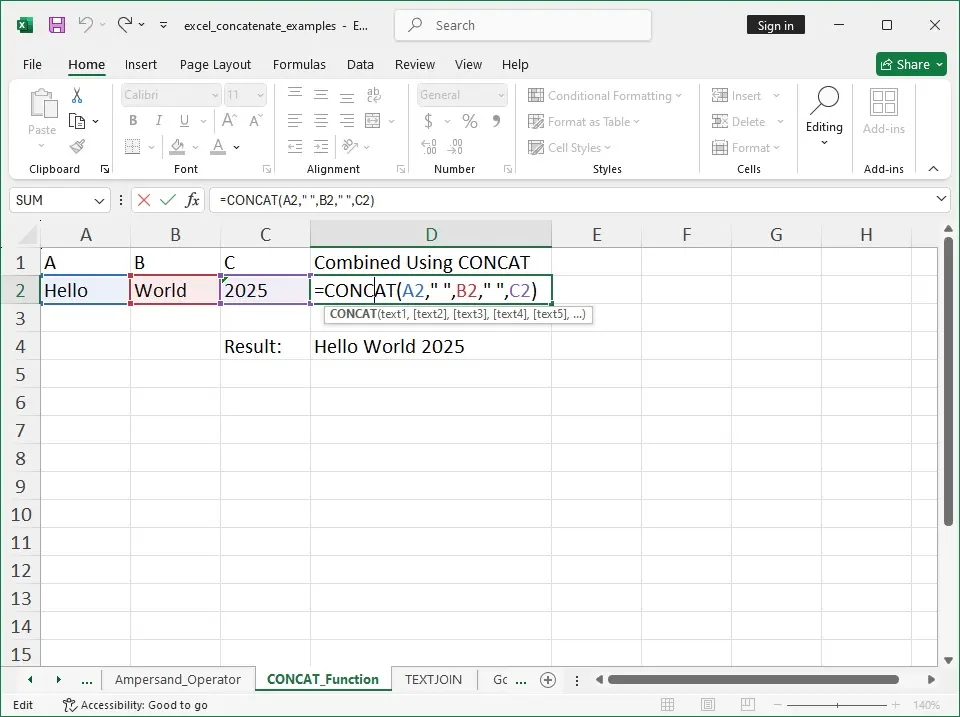
As powerful as the & operator is, the traditional concat excel function, CONCATENATE, had a major drawback: it could not handle a range of cells easily. You had to list every single cell reference one by one! Thankfully, newer versions of excel, since excel 2016, introduced superior functions to deal with Excel and Concatenate.
CONCAT: The Better Concatenate Formula
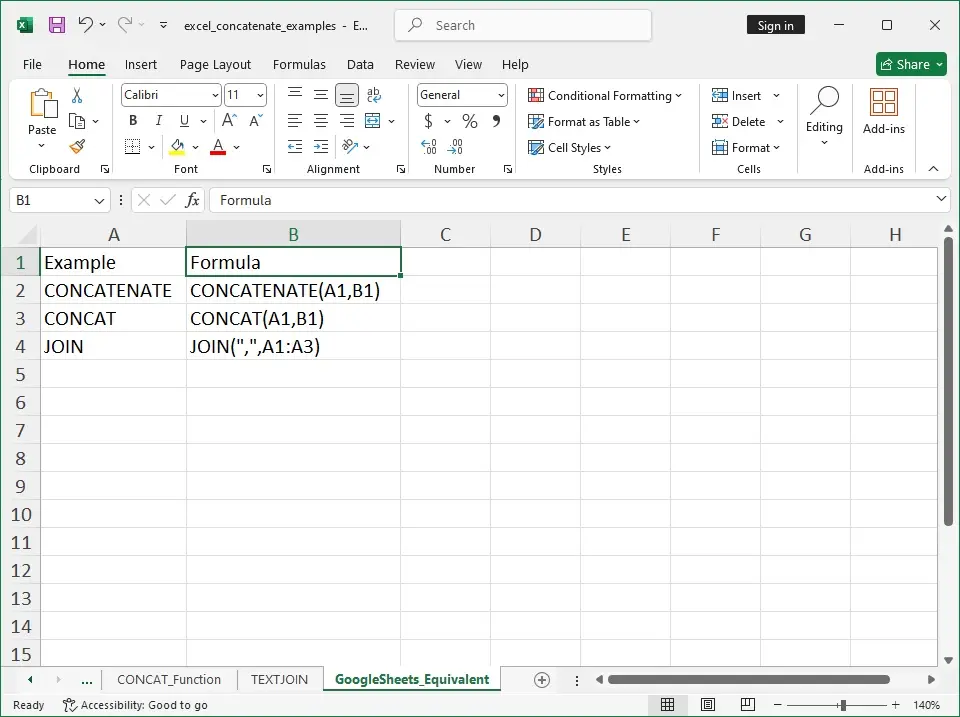
It is important to remember that these concepts of Excel and Concatenate are universal in the spreadsheet world. If you are working in an online environment, you might be dealing with concatenate google sheet functions, especially when collaborating in real time. Google Sheets also has a CONCATENATE function, but it usually also has a simpler CONCAT operator and a function called JOIN which works similarly to Textjoin. So, regardless of your platform, the core principles of the concatenate formula remain the same—you just might see a slightly different concat excel function name when you are in a concatenate google sheet environment. This is why practising concatenate in google sheet along with Excel methods makes you flexible across tools. Knowing how to concat excel prepares you for any data environment.
Textjoin: The Delimiter Champion
For the most flexible and kind of professional-looking Excel and Concatenate work, you really want to look at Textjoin. This special text function is like a super tool for merging lots of data, especially when you have many cells and you want the delimiter, like a space or a comma or whatever you are using to separate the pieces, to show up the same way every time.
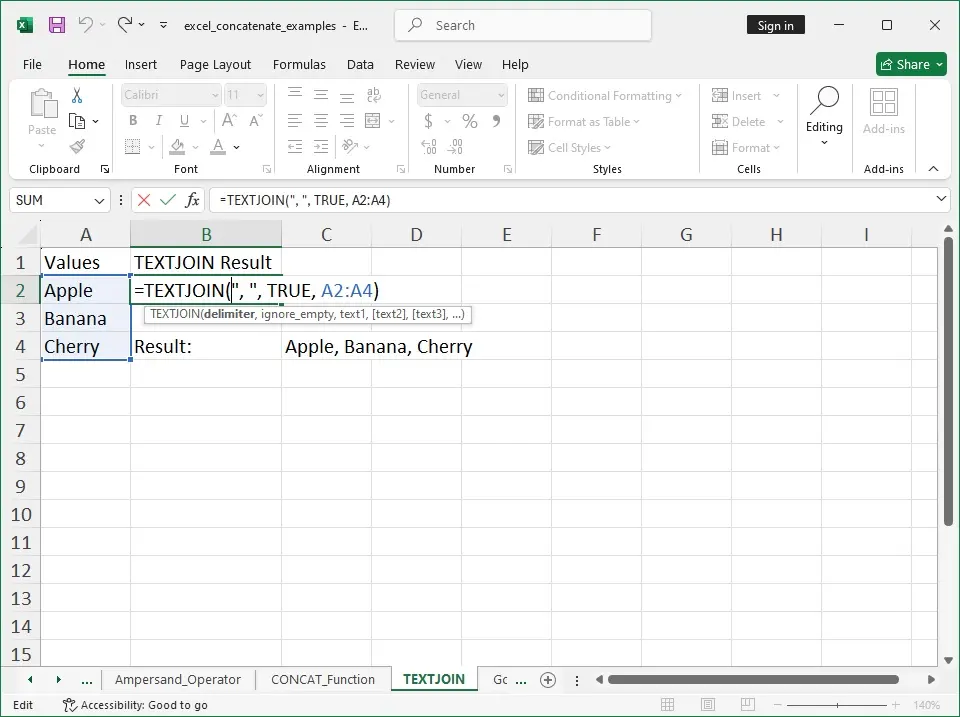
The Textjoin syntax is a little different, but incredibly useful:
=TEXTJOIN(delimiter, ignore_empty, text1, [text2], …)
Let us break down why Textjoin is so amazing:
- Delimiter: You set your separator (like “, “) right at the beginning. This saves you from typing ” ” repeatedly as you would with a regular concatenate formula or the & operator.
- Ignore Empty: This is where Textjoin truly shines. The ignore_empty argument is just a TRUE or FALSE value. When you set it to TRUE, Textjoin will quietly skip any empty cells in your range, so you do not get weird extra commas or spaces in your final Excel concatenate text. This makes Excel and Concatenate feel much more dependable, even when your source data is a bit messy or all over the place.
Using Textjoin is the most efficient method for large datasets. It is the powerhouse of all text function options.
Combining Data Outside of Desktop Excel and Concatenate
It is important to remember that these concepts of Excel and Concatenate are universal in the spreadsheet world. If you are working in an online environment, you might be dealing with concatenate google sheet functions. Google Sheets also has a CONCATENATE function, but it usually also has a simpler CONCAT operator and a function called JOIN which works similarly to Textjoin. So, regardless of your platform, the core principles of the concatenate formula remain the same, you just might see a slightly different concat excel function name when you are in a concatenate google sheet environment. Knowing how to concat excel prepares you for any data environment.
Final Thoughts on Excel and Concatenate
Whether you choose the classic concatenate formula, the slick ampersand, or the advanced Textjoin text function, you are now equipped with the knowledge to perform amazing data operations. Remember, the key to successful Excel and Concatenate is managing those spaces and delimiters. Do not let those names run together! Practice using the & operator for quick fixes, and dive into Textjoin when you need to combine columns of data like addresses. The more you use concat excel techniques, the more automatic they become, and these same principles also apply when using concatenate google sheet for cloud-based workflows.
Keep playing around with different examples of excel concatenate text. Try combining dates (remembering you might need the TEXT function to format the date correctly before concatenation!), product IDs, or geographical data. Every time you successfully concat excel data, you are saving yourself valuable time and becoming a more skilled data handler. You can even try similar tasks in concatenate google sheet to compare your results across platforms.
Why Concatenate Skills Matter for Clean, Structured Data
This powerful skill of Excel and Concatenate will serve you well. It is a practical, necessary step in data cleanup and preparation. The concat excel formula options we discussed, from CONCATENATE to the superior Textjoin, all help you transform the messy, disparate data into a single, organised unit. So, open up your spreadsheet and start joining those strings of Excel concatenate text right now! Do not forget to try out the CONCAT function, which is the newest and most robust concat excel function for beginners. Learning Excel and Concatenate truly sets you up for success. We hope this guide on concat excel formula techniques has made this topic clear! Happy concatenating, whether in Excel or concatenate google sheet!