
This is precisely why learning ( how to make a drop down list in excel ) is one of the most valuable, easy-to-learn skills you can acquire. A well-constructed drop down list forces everyone to use the same terminology, which is the cornerstone of great data integrity.
In this professional guide, we are going to walk through the steps, ensuring you understand exactly ( how to make a drop down list in excel ) not just once, but in a smart way that minimizes future maintenance. We will cover the basic method for the simple drop down list that results in a cleaner list in excel, and then, crucially, we will move on to the more flexible approach for a truly dynamic drop down list excel.
By the time you are finished reading, you will know exactly ( how to make a drop down list in excel ) that looks professional and functions flawlessly. This is the difference between a clumsy workbook and a perfectly streamlined excel practice sheet. You can also enhance this with conditional formatting. Knowing how to use conditional formatting effectively makes your data stand out.
Preparing Your Source Data
Before you even think about the Data validation menu, you must gather the items that will populate your drop down list.
It is recommended practice to put this source list in excel practice sheet in a separate, dedicated column, sometimes even on a different sheet, which you might later hide. For example, if you are making an inventory tracker and need status options, your source column might look like this: “In Stock,” “Low Stock,” “Discontinued,” “Back Ordered.”
This dedicated list makes it much easier to later learn ( how to make a drop down list in excel ) that needs adjustment, or if you need to perform quick conditional formatting based on those values. Having a source list in excel practice sheet ready is a key part of setting up reliable Data validation for your drop down list. This approach is also crucial when preparing to create a dependant drop down list in excel.
Step-by-Step Guide to Create Your First Drop Down List
- Select the Destination: Click on the cell where you want the drop down list to appear. If you need it in multiple cells, select the entire range where you want your new drop down box in excel. This is where your successful Data validation will be applied.

- Find Data Validation: In the Data Tools section, find and click the Data validation button . A dialog box will pop up. This is where you finalize ( how to make a drop down list in excel ).
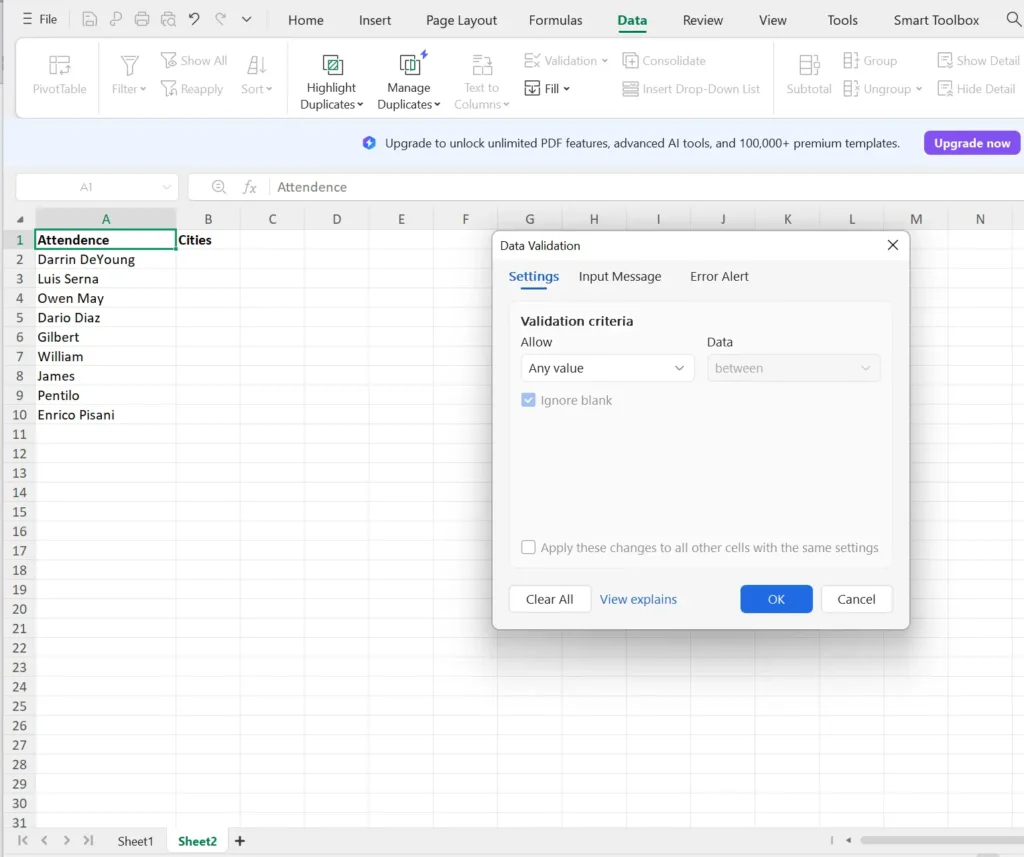
- Choose “List”: In the Data validation dialog box, under the Settings tab, look at the Allow dropdown box. Change the setting from “Any Value” to List. This tells Excel that you are about to create a functional drop down list.

4. Set the Source: This is the most important step for learning ( how to make a drop down list in excel ). Click inside the Source box. Now, go and select the cells where you prepared your source data (for example, Sheet2=$A$1:$A$10).

5. Click OK: Make sure the In-cell dropdown checkbox is ticked, which it usually is by default, and then click OK.
Making the List Smarter: Dynamic Drop Down List Excel
The downside to the simple method we just discussed is this: if you add a new item to your source list in excel, it does not automatically appear in the drop down list. You would have to go back into Data validation settings and manually adjust the range, which nobody wants to do. This is a huge problem when managing something that needs constant updating. This is why knowing conditional formatting is so helpful. The simple method, even with conditional formatting, still requires manual updates to the source range.
The solution is to create a dynamic drop down list excel. This automatically handles the changes, meaning you never have to worry about updating the range again. This is where the simple act of learning ( how to make a drop down list in excel ) turns into a smart automation technique. The dynamic drop down list excel is a major advancement over a standard static drop down box in excel.
The Power of Excel Tables for Dynamic Data
The absolute simplest and most reliable way to create a dynamic drop down list excel in modern versions of Excel is by converting your source list in excel into an official Excel Table.
- Convert the Source Range: Select your source data and, on the Insert tab, click Table. This will convert your plain list into a structured Table. This prepares the range for Data validation expansion.
- Reference the Table: Now, repeat the steps for creating the drop down list: select your destination cell, open Data validation, choose List, and then for the Source, simply select the data column within your newly created Table (excluding the header).
- Automatic Expansion: Now, watch this: when you add a new item directly beneath the last entry in that Table column, the Table automatically expands to include it. Because your drop down box in excel is linked to the Table, the new item appears in the drop down list instantly!

This Table method is the professional answer to creating a flexible dynamic drop down list excel without any complex formulas. Once you adopt this approach to ( how to make a drop down list in excel ), you will never go back to fixed ranges. It makes your sheet much more resilient and professional. Knowing ( how to make a drop down list in excel ) this way is a genuine time-saver, especially if you plan to use advanced features like conditional formatting later on.
Creating a Dependant Drop Down List Excel
The dependant drop down list excel requires a structured source list in excel and the use of Named Ranges and the INDIRECT function within the Data validation source.
- Name Your Lists: You must take your category lists (e.g., the list of fruits, the list of vegetables) and give each one a unique Named Range. This is essential for the dependant drop down list excel.
- Validation for the First List: Create the first drop down list (the Category selector) using the standard Data validation method, sourced from a list in excel containing the category names (e.g., “Fruits, Vegetables, Dairy”).
- Validation for the Dependant List: For the second drop down list, go to Data validation, choose List, and in the Source box, you will enter a formula that references the cell containing the first selection. The syntax often looks something like =INDIRECT(B2). This formula tells the drop down box in excel practice sheet to look for a Named Range that matches the text in cell B2. This is the sophisticated way ( how to make a drop down list in excel ) with hierarchy.
This dependant drop down list excel functionality is what separates a basic excel practice sheet from an interactive form. It requires careful setup and meticulous Data validation practices but is extremely powerful once completed.
Final Thoughts on Making a Drop Down List in Excel
Learning ( how to make a drop down list in excel ) is really a simple process built on understanding the Data validation tool. This single feature helps to enforce consistency across every list in excel practice sheet and data set you manage. We hope this guide clearly showed you ( how to make a drop down list in excel ) and, more importantly, how to create a dynamic drop down list excel via Excel Tables. Start applying these steps today to insert a functional drop down box in excel into all your worksheets, and enjoy cleaner, more reliable data.
It is the sort of small effort that yields tremendous gains in your daily workflow. Every professional should know precisely ( how to make a drop down list in excel ) and how to implement conditional formatting to make it even more effective. Knowing how to create a dependant drop down list in excel is also key.effective. The time saved from not having to constantly clean up inconsistent data is absolutely worth it. Knowing ( how to make a drop down list in excel ) for a dependant drop down list excel or creating a robust excel practice sheet will set you apart. Go master ( how to make a drop down list in excel ) today!
Frequently Asked Questions about the Drop Down List in Excel
This entire process of learning ( how to make a drop down list in excel ) is pretty simple, but a few common questions always come up.
How do I remove a drop down list from a cell?
To remove a drop down list from a cell, simply select the cell or range, go back to the Data tab, click Data validation, and in the dialog box, click the Clear All button, and then OK. The underlying value in the cell remains, but the drop down box in excel and the Data validation rule disappear. This is a very quick task when you need to change your list in excel structure.
Can I create a drop down list from data on a different sheet?
Yes, absolutely. When you are defining the source for your drop down list in the Data validation dialog box, you can navigate to any sheet in your workbook to select the source cells. This is, in fact, the most common and best practice when you create a drop down box in excel because it keeps the source data hidden and separate from your main excel practice sheet.
Why is my drop down list not updating when I add new items?
This is because you likely created a static reference when you learned ( how to make a drop down list in excel ) initially. The simplest fix is to convert your source data into an Excel Table. If you do this, your list instantly becomes a dynamic drop down list excel, resolving the problem of list updating permanently.
Can I have one drop down list change based on another selection?
Yes, this advanced solution is known as a dependant drop down list excel. It utilizes the INDIRECT function in the Data validation source to link the list to a selected category. This is the sophisticated way ( how to make a drop down list in excel ) when you have hierarchical data on your list in excel.
Can I have my drop down list ignore blank cells in the source data?
If you are using a standard range, blank cells will appear in your drop down box in excel. The best way around this when learning ( how to make a drop down list in excel ) is to use an Excel Table or a sophisticated formula like OFFSET combined with COUNTA to create a truly efficient dynamic drop down list excel that intelligently ignores empty cells in your list in excel. This helps to make your reports look much cleaner and professional.
Can I use Conditional Formatting for things other than colors?
You bet! It’s not just about turning the cell red or green. Conditional Formatting can also:
- Change the text color (maybe make “Low Priority” text grey).
- Add icons (like a little red ‘X’ for “Cancelled”).
- Put a border around the cell.
- Even show data bars inside the cell.