
The IFERROR Excel formula is honestly one of the most important tools you need when you move beyond basic excel formulas and start dealing with real-world data. Every person who has used Excel knows the frustration of those ugly hash tags popping up those relentless excel errors that clutter up a beautiful report. That is where this exceptional excel functions comes into play helping us handle unexpected mistakes gracefully. Learning the IFERROR Excel formula is a fundamental step in transitioning from basic excel formulas to Advanced reporting capabilities. We are going to explore this essential iferror formula completely, giving you all the necessary Examples and excel tricks for clean sheets.
IFERROR Excel Formula Syntax Explained
The IFERROR function in Excel is a logical function that checks if a value or formula results in an error and if it does returns a specified value instead.
IFERROR Excel Formula Syntax
The basic syntax for the IFERROR function is
=\text{IFERROR}(\text{value}, \text{value\_if\_error})
- value– This is the argument that is checked for an error. It can be a reference to a cell, a formula, or a value.
- value_if_error This is the value that is returned if the value argument evaluates to any error (such as #N/A, #VALUE!, #REF!, #DIV/0!, #NUM!, #NAME?, or #NULL!).
Step-by-Step Guide to Using IFERROR Excel Formula
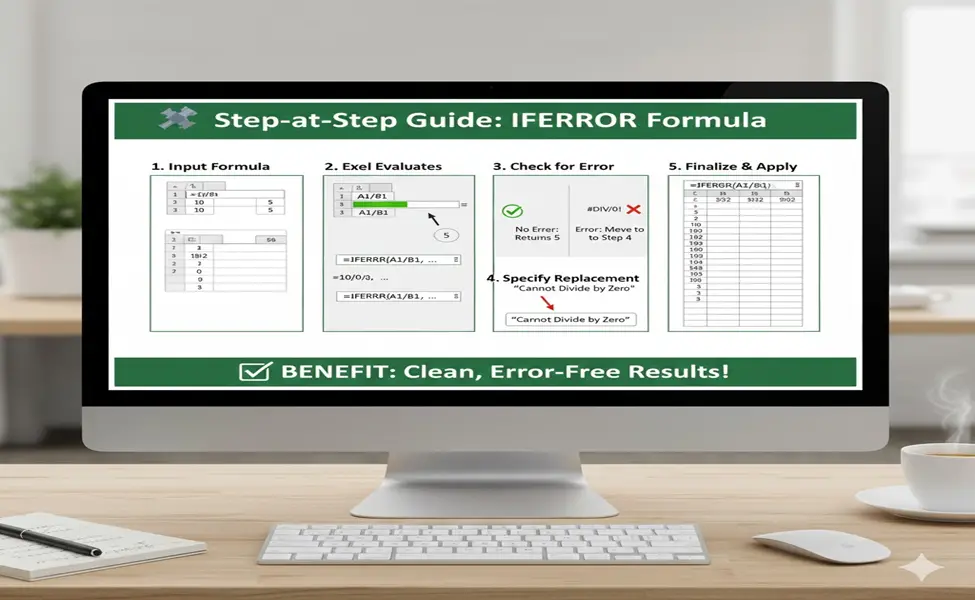
- Input the Calculation/Value – Start by providing the formula or value you want Excel to evaluate as the first argument, value.
- Example – If you are trying to divide cell A1 by B1, the start of your formula would be – =IFERROR(A1/B1, …)
- Excel Evaluates the Calculation Excel attempts to calculate the value argument (e.g., A1/B1).
- Check for Error Excel then checks the result of the calculation
- If the result is NOT an error (e.g., A1 is 10 and B1 is 2, the result is 5), the IFERROR function returns the result of the value argument (the 5).
- If the result IS an error (e.g., A1 is 10 and B1 is 0, the result is #DIV/0!), the IFERROR function moves to the next step.
- Specify the Error Replacement If an error is detected, the function returns the value_if_error argument. This can be a number, text (enclosed in double quotes), or an empty string (“”) to show a blank cell.
- Example- To replace the #DIV/0! error with the text “Cannot Divide by Zero”, the complete formula is =IFERROR(A1/B1, “Cannot Divide by Zero”)
- Finalize the formula Press Enter to apply the formula to the cell, and then you can drag the formula down to apply it to other cells in your column.

Practical Examples Using the IFERROR Excel Formula
Seeing the IFERROR Excel formula in action is the fastest way to understand its power. We must look at some real-life examples that everyone runs into when they are using basic excel formulas and trying to navigate through meaningful excel analytics from basics to advanced. These applications show how the iferror formula truly transforms how you manage spreadsheet excel errors free. For anyone learning basics to advanced Excel, these Examples are crucial practice.
Example 1- Avoiding #DIV/0! Errors
Division by zero is the most common of all excel errors. When calculating percentages or ratios, if the denominator is zero or blank, Excel throws the ugly #DIV/0! error.
- The Problem -The formula =A2/B2 returns #DIV/0! if B2 is 0.
- The Solution-Applying the IFERROR Excel formula turns it into =IFERROR(A2/B2, 0).
- The Benefit- Now, instead of the error, you get a clean zero, which makes summary calculations correct, and improves your basic excel formulas significantly. This is a very useful excel trick to learn early. The iferror formula keeps your spreadsheets running smoothly with simple Examples.

Example 2- Cleaning up VLOOKUP #N/A Results
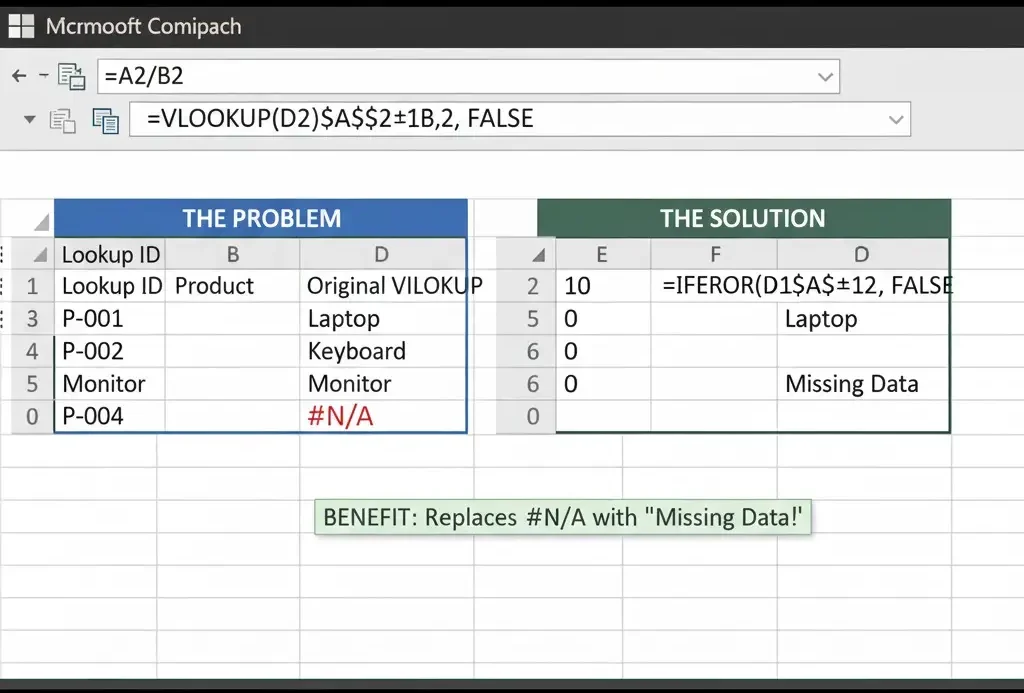
VLOOKUP and HLOOKUP are brilliant excel functions but they return a #N/A error when they cannot find the value you are looking for. This is another frequent member of the excel errors family and basic excel formulas.
- Original =VLOOKUP(A2, DataRange, 2, FALSE) returns #N/A if A2 is missing.
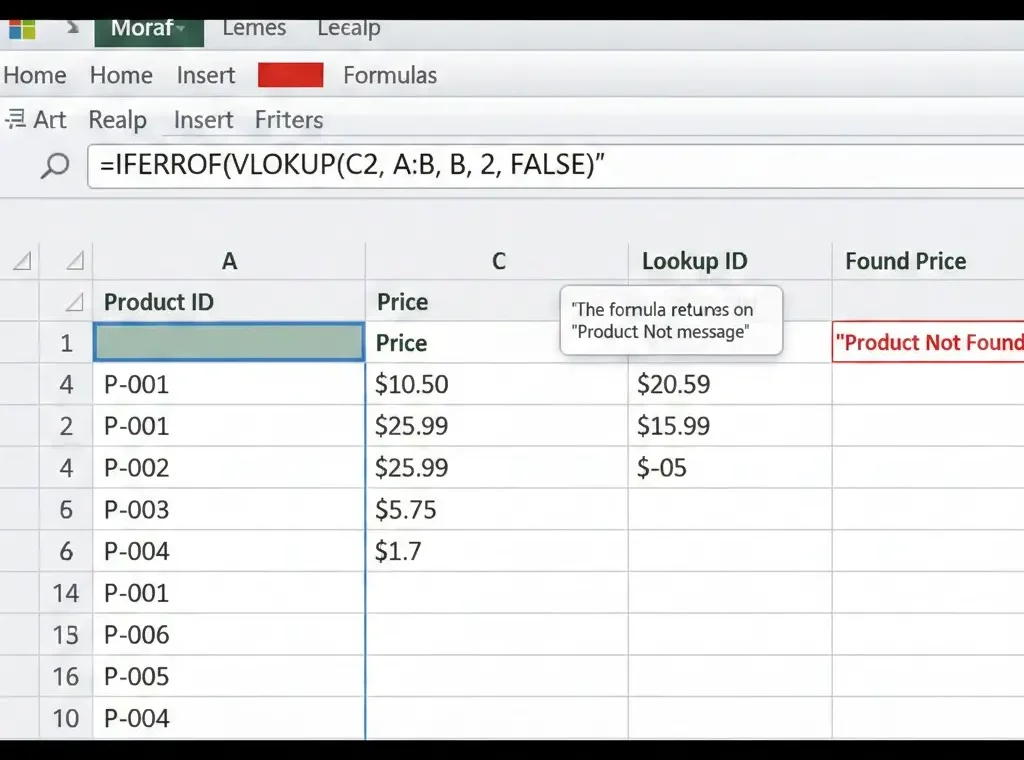
- Improved: the IFERROR Excel formula changes it to =IFERROR(VLOOKUP(A2, DataRange, 2, FALSE), “Missing Data”).
- The Result: Your excel analytics look much better now, substituting the error with “Missing Data.” Using the iferror formula like this is a core skill for anyone working in advanced excel. We must remember these Examples when transitioning from basics to advanced skills.
Best Practices for Advanced IFERROR Excel Formula Use
While the IFERROR Excel formula is simple, there are some clever ways to use it that fall into the territory of advanced excel expertise from basic excel formulas. These excel tricks enhance all your excel functions.
Why it is Better Than IF(ISERROR())
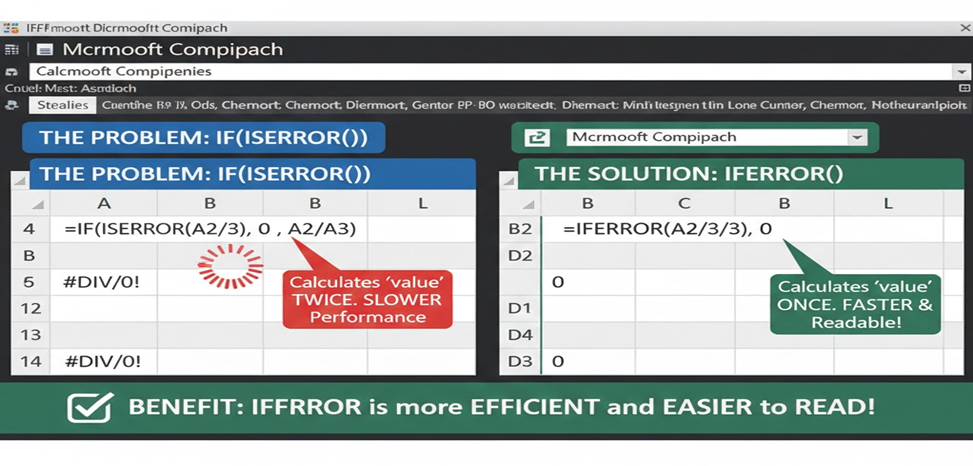
Before the introduction of the IFERROR Excel formula, you had to use the longer construction =IF(ISERROR(Value), Value_if_error, Value). This older formula forces Excel to calculate the ‘Value’ argument twice, which slows down large sheets.
- Performance-The modern IFERROR Excel formula calculates the ‘Value’ argument only once, saving processing power, which is a great excel trick.
- Readability- It is so much shorter and easier to read, making your advanced excel errors free from debug. This is a huge benefit when dealing with complex nested excel functions. Learning these basics to advanced efficiencies is vital.
Using IFERROR Excel Formula with Text
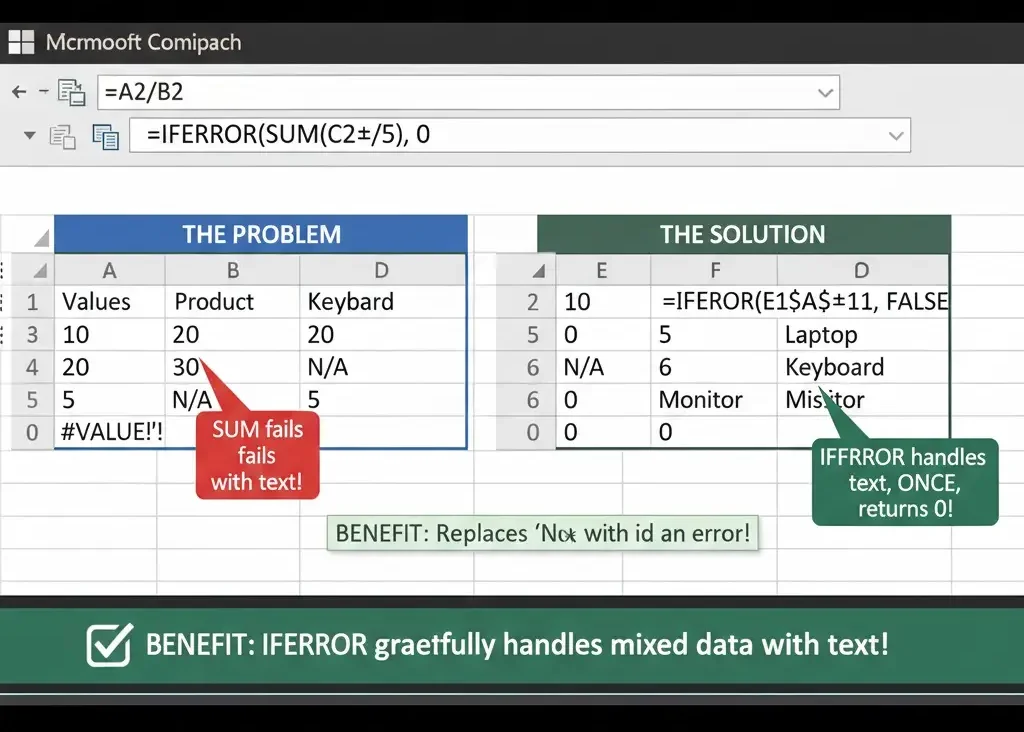
The IFERROR Excel formula can manage situations where a function expects a number but gets text, leading to excel errors like #VALUE!.
- Example If you try to sum a column that includes text, the basic excel formulas will return an error. You can wrap the calculation in the IFERROR formula to handle this mixed data. These are simple yet effective examples for clean excel analytics. Learning this specific application is another step on the road from basics to advanced Excel usage.
Combining IFERROR Excel Formula with Other Excel Functions
Truly advanced excel reporting involves nesting the IFERROR Excel formula inside other logical excel functions such as IF statements or CHOOSEROWS.
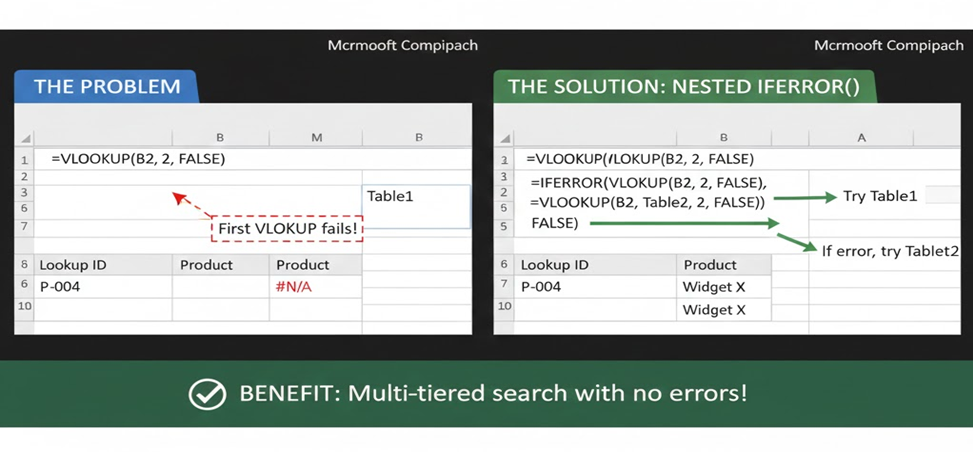
- Scenario You can use IFERROR to check the first VLOOKUP. If that fails (returns #N/A), you can then tell the ‘value_if_error’ argument to try a second VLOOKUP on an alternative table. This clever excel trick provides a multi-tiered search capability without any messy excel errors. These Examples show the ultimate power of this excel functions.
5. IFERROR for Reliable Excel Analytics and Reporting
The integrity of your excel analytics relies heavily on controlling those inevitable excel errors. The IFERROR Excel formula provides the clean, reliable foundation needed for professional reports. It is truly the key difference between basic excel formulas and truly professional advanced excel models.
Transitioning from Basics to Advanced Use
Many people use the basic excel formulas well but struggle when data quality is poor. The iferror formula bridges that gap allowing you to build robust systems even with messy data.
- Robustness– The IFERROR Excel formula allows you to automate data processes, confident that minor data inconsistencies will not crash your summary reports. This is a core concept taught when moving from basics to advanced proficiency. These continuous examples show their broad utility.
Using IFERROR Excel Formula with Array Formulas
In modern advanced excel environments, excel functions are often used as array formulas. When any one element in the array calculation generates an error, the entire array can fail.
- Solution Wrapping the entire array formula within the IFERROR Excel formula ensures that if a single calculation fails, the entire output still returns a designated, clean value (like “0” or “None”). This excel trick is vital for complex excel analytics projects. The iferror formula is an absolute must-know.
Final Thoughts on Mastering the IFERROR Excel Formula
The IFERROR Excel formula is one of the quickest ways to improve the quality of your spreadsheets. It handles almost all common excel errors with minimum fuss. Do not underestimate the time saved by using the simple iferror formula. It eliminates manual hunting for #REF! or #NAME? errors. The power of the IFERROR Excel formula is proven across all the Examples we have seen today. This specific excel functions is crucial for transitioning from basics to advanced Excel skills.

Excel Tricks and Advanced Excel Notes
Always prioritize the IFERROR Excel formula over the older IF(ISERROR()) construction for better performance in advanced excel spreadsheets. Mastering this one excel trick will make your files run faster and look cleaner for any excel analytics presentation. The basic excel formulas often lead to many excel errors making the iferror formula necessary. Learning these excel tricks through practical Examples will accelerate your journey from basics to advanced, so begin doing it today!. The excel functions available in Excel are vast; hence, learn to apply the basic excel formulas wisely. The clean excel analytics are worth the effort and the IFERROR Excel formula stands out. This excel function is the hero of excel analytics. We must remember the simple elegance of the IFERROR Excel formula in all advanced excel projects.